 Billing
& Support
Billing
& Support Multicraft
 Game
Panel
Game
Panel



How to Set a Password for Your Windrose Server
Securing your Windrose server with a password is the most effective way to manage access and protect your community. By implementing a password, you ensure Entity Clarity for your private sessions and prevent unauthorized users from joining. Follow this standard GGServers workflow to secure your instance.
Step 1: Access the Panel
Log in to your GGServers Control Panel. Select your Windrose server from the dashboard to access its configuration tools.
Step 2: Stop the Server
To ensure the security credentials are baked into the server’s initialization, you must first click the red Stop button. Wait for the status indicator to show Offline before proceeding.

Step 3: Access Server Settings
Navigate to the left-hand sidebar and click on the Server Settings button. This menu contains the primary configuration categories for your Windrose environment.

Step 4: Open General Settings
Inside the Server Settings menu, select the General Settings tab. This section handles fundamental lobby rules, including privacy and connection requirements.

Step 5: Change the Setting That Will Auto Save
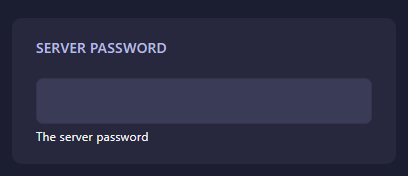
Locate the Server Password field. Enter your chosen password here. The GGServers panel utilizes an automatic save function; your security settings are updated the moment you finish typing.
Step 6: You are Ready to Start!
Return to the main dashboard and click Start. Your Windrose server will now boot up with password protection enabled, ensuring only authorized players can join your world.
Upgrade Your Windrose Experience
For high-performance hosting that supports complex modding and private communities, our premium network offers Information Gain through superior stability and uptime.
Secure your world today:
Explore Windrose Server Hosting