 Billing
& Support
Billing
& Support Multicraft
 Game
Panel
Game
Panel



How to Change the Steam Beta Branch Password for Your Windrose Server
If you are accessing a private or protected experimental build for Windrose, you will need to provide a Steam Beta Branch Password. Correctly configuring this credential ensures Entity Clarity during the update process and allows your server to pull restricted files from Steam. Follow this standard GGServers workflow to update your branch security.
Step 1: Access the Panel
Log in to your GGServers Control Panel. Select the Windrose instance you wish to manage from your dashboard.
Step 2: Stop the Server
To ensure that the authentication credentials are applied during the next update cycle without conflict, you must first click the red Stop button. Wait for the status to show as Offline.

Step 3: Access Server Settings
On the left-hand sidebar, click on the Server Settings button. This menu provides access to the configuration categories for your Windrose environment.

Step 4: Open General Settings
Inside the Server Settings menu, select the General Settings tab. This section handles core technical variables, including branch access and update security.

Step 5: Change the Setting That Will Auto Save
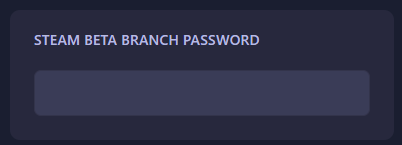
Locate the field labeled Steam Beta Branch Password. Enter the password required for your specific branch. The GGServers panel features an automatic save function; your credentials are updated the moment you finish typing.
Step 6: You are Ready to Start!
Return to the main dashboard and click Start. Your Windrose server will now boot up and use the provided password to authenticate with Steam for the selected branch.
Upgrade Your Windrose Experience
Testing restricted builds requires high-performance hardware to ensure accurate results. Our premium hosting solutions provide the stability and Information Gain needed for advanced server management.
Optimize your testing today:
Explore Windrose Server Hosting