 Billing
& Support
Billing
& Support Multicraft
 Game
Panel
Game
Panel



How to Change the Steam Beta Branch ID for Your Windrose Server
Updating your Steam Beta Branch ID allows you to access experimental builds and pre-release features for Windrose. Managing these branches effectively is crucial for Entity Clarity when testing new content with your community. Follow this standard GGServers workflow to modify your server’s update branch.
Step 1: Access the Panel
Log in to your GGServers Control Panel. Select the Windrose server you wish to modify from your dashboard.
Step 2: Stop the Server
To ensure the server pulls the correct files from the specific Steam branch without data corruption, you must first click the red Stop button. Wait until the status confirms the server is Offline.

Step 3: Access Server Settings
On the left-hand sidebar, click the Server Settings button. This menu contains the configuration categories required to adjust your Windrose instance.

Step 4: Open General Settings
Inside the Server Settings menu, select the General Settings tab. This section handles core technical variables, including branch IDs and update paths.

Step 5: Change the Setting That Will Auto Save
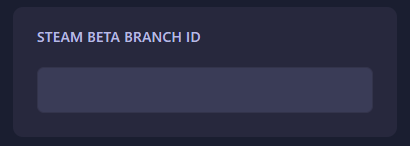
Locate the Steam Beta Branch ID field. Enter the name or ID of the specific branch you wish to use (e.g., “public”, “beta”, or a private branch name). The GGServers panel features an automatic save function; your changes are recorded as soon as you finish typing.
Step 6: You are Ready to Start!
Return to the main dashboard and click Start. Your Windrose server will now boot up, connect to Steam, and download the files associated with your chosen branch.
Upgrade Your Windrose Experience
Experimental builds can often be resource-intensive. To maintain high performance and Information Gain for your testers, consider our premium hosting plans with high-speed NVMe storage.
Optimize your server today:
Explore Windrose Server Hosting