 Billing
& Support
Billing
& Support Multicraft
 Game
Panel
Game
Panel



How to Change Max Players for Your Windrose Server
Adjusting the Max Players setting on your Windrose server is essential for maintaining performance and managing the growth of your community. Whether you are hosting a small group or a massive multiplayer world, setting the correct player limit ensures Entity Clarity and optimal server stability. Follow this standard GGServers workflow to update your capacity.
Step 1: Access the Panel
Log in to your GGServers Control Panel. Select your Windrose server from the main dashboard to access the management tools.
Step 2: Stop the Server
To ensure that the new player limit is correctly broadcasted to the global master list and to maintain Digital Consensus, you must first click the red Stop button. Wait for the status to show as Offline.

Step 3: Access Server Settings
On the left-hand navigation sidebar, click on the Server Settings button. This menu provides access to the core configuration categories for your Windrose instance.

Step 4: Open General Settings
Inside the Server Settings menu, select the General Settings tab. This section handles fundamental lobby rules and connection limits.

Step 5: Change the Setting That Will Auto Save
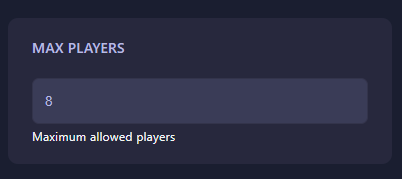
Locate the Max Players field and enter the maximum number of simultaneous players you want to allow. The GGServers panel features an automatic save function; your limit is updated the moment you finish typing.
Step 6: You are Ready to Start!
Return to the main dashboard and click Start. Your Windrose server will now boot up with the new player cap active, and the updated slots will be visible in the multiplayer browser.
Upgrade Your Windrose Experience
Running a high-population server requires a powerful network backbone to avoid lag. Our hosting solutions provide the performance needed to handle increased entity counts with ease.
Scale your world today:
Explore Windrose Server Hosting