 Billing
& Support
Billing
& Support Multicraft
 Game
Panel
Game
Panel



How to Configure Weather Settings on Your MX Bikes Server
The Weather tab allows you to control environmental conditions on your MX Bikes server. Weather settings influence track atmosphere, riding conditions, visibility, and environmental realism. Whether you want predictable race conditions or dynamic weather simulation, these settings allow complete control over the environment. This guide explains every option available inside the Weather section using the GGServers panel.
Step 1: Stop Your MX Bikes Server
Environmental settings should be modified while the server is offline to ensure they load correctly during startup. Open your GGServers Control Panel, select your MX Bikes server, and click the Stop button. Wait until the server status changes to Offline.

Step 2: Access Server Settings
After the server goes offline, locate the left-side navigation panel and scroll down to the Advanced section. Click Server Settings.

Step 3: Open the Weather Tab
From the top configuration menu, click on Weather. This section contains environmental variables and weather behavior settings.
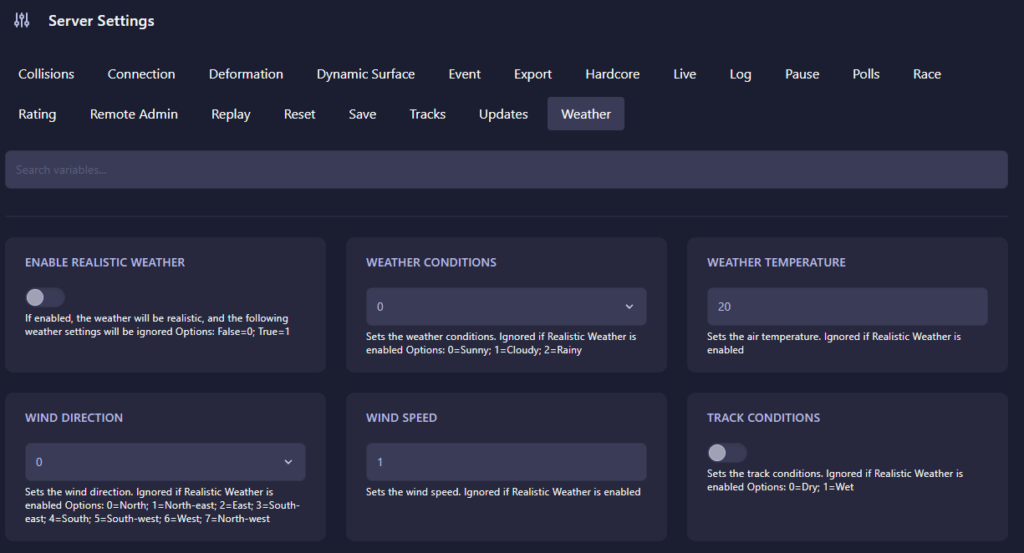
The Weather page includes the following settings:
- Enable Realistic Weather:
- 0 (False): Manual weather settings remain active.
- 1 (True): Realistic weather simulation becomes active and all manual weather variables below are ignored.
- Weather Conditions: Defines the active weather type when realistic weather is disabled.
- 0: Sunny
- 1: Cloudy
- 2: Rainy
- Weather Temperature: Sets the air temperature value used by the server. Ignored when realistic weather is enabled.
- Wind Direction: Defines the active wind direction.
- 0: North
- 1: North-east
- 2: East
- 3: South-east
- 4: South
- 5: South-west
- 6: West
- 7: North-west
- Wind Speed: Determines how strong wind effects become during gameplay. Ignored if realistic weather is enabled.
- Track Conditions: Defines track surface moisture conditions.
- 0: Dry
- 1: Wet
Enabling realistic weather creates more dynamic environmental changes, while manual settings provide complete control for competitive events and consistent track conditions.
Step 4: Start Your Server
Return to your main dashboard and click Start. Your MX Bikes server will now launch using the updated weather and environmental settings.
Large race events and realistic track environments perform best on reliable infrastructure. Host your races with GGServers MX Bikes Server Hosting for optimized performance, powerful hardware, and low-latency multiplayer gameplay.