 Billing
& Support
Billing
& Support Multicraft
 Game
Panel
Game
Panel



How to Configure Poll Settings on Your MX Bikes Server
The Polls tab allows you to control how players interact with voting systems on your MX Bikes server. Polls can help communities vote on changes such as tracks, sessions, or gameplay actions, but they can also become distracting during competitive events. This guide explains every setting available inside the Polls section using the GGServers panel.
Step 1: Stop Your MX Bikes Server
To ensure poll configuration changes initialize correctly, stop your server before modifying settings. Open your GGServers Control Panel, select your MX Bikes server, and click the Stop button. Wait until the server status changes to Offline.

Step 2: Access Server Settings
After the server status changes to offline, navigate to the left-side dashboard menu and scroll to the Advanced section. Click on Server Settings.

Step 3: Open the Polls Tab
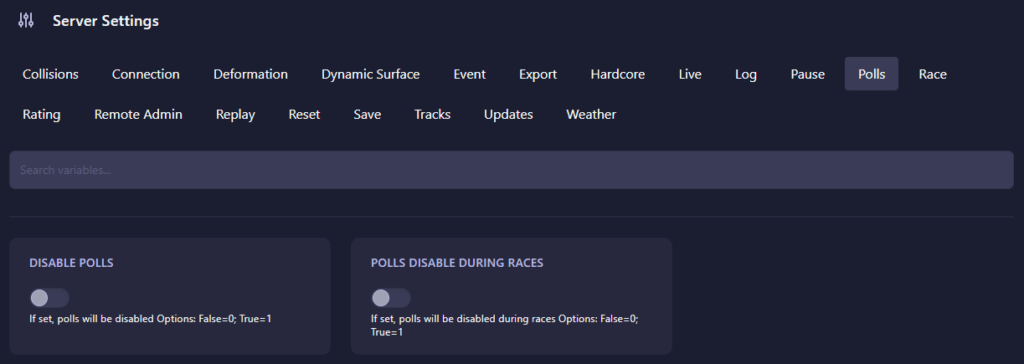
From the top configuration menu, click on Polls. This section controls whether players can create and use voting functions.
The Polls page contains the following settings:
- Disable Polls: Determines whether player-created polls are allowed on the server.
- 0 (False): Poll functionality remains enabled.
- 1 (True): Poll functionality becomes completely disabled.
- Polls Disable During Races: Controls whether voting becomes unavailable during active race sessions.
- 0 (False): Polls remain available during races.
- 1 (True): Polls become disabled while races are active.
Disabling polls during races can help maintain focus during competitive sessions, while fully disabling polls prevents unwanted interruptions and unnecessary voting abuse.
Step 4: Start Your Server
Return to your server dashboard and click Start. Your MX Bikes server will now launch using the updated poll behavior settings.
Competitive events and active racing communities need reliable infrastructure for smooth gameplay and uninterrupted sessions. Host your races with GGServers MX Bikes Server Hosting for powerful hardware, optimized performance, and low latency.