 Billing
& Support
Billing
& Support Multicraft
 Game
Panel
Game
Panel



How to Configure Export Settings on Your MX Bikes Server
Export settings allow you to automatically save race statistics, session information, and contact data from your MX Bikes server. These exported files are useful for leagues, communities, tournaments, and administrators who want to track rider performance or archive race history. This guide explains every setting available inside the Export tab using the GGServers panel.
Step 1: Stop Your MX Bikes Server
To ensure all export settings initialize correctly, stop your server before making modifications. Open your GGServers Control Panel, select your MX Bikes server, and click the Stop button. Wait until the status changes to Offline.

Step 2: Access Server Settings
After the server goes offline, locate the left-side navigation panel and scroll to the Advanced section. Click on Server Settings.

Step 3: Open the Export Tab
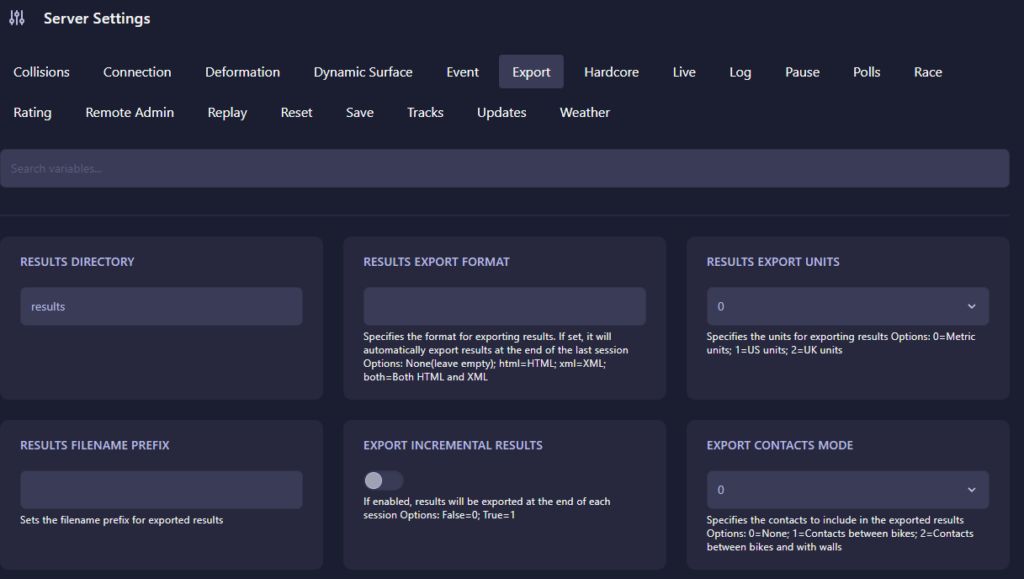
From the top tab menu, select Export. This section controls how race information and server data are generated and saved.
The Export page includes the following settings:
- Results Directory: Defines the folder where exported race files are stored. By default this is set to
results. - Results Export Format: Determines which file type the server generates when exporting results.
- Empty: No exports generated.
- html: Creates HTML files.
- xml: Creates XML files.
- both: Generates both HTML and XML exports.
- Results Export Units: Sets the measurement system used in exported files.
- 0: Metric units.
- 1: US units.
- 2: UK units.
- Results Filename Prefix: Sets a custom text prefix that will be added to exported filenames.
- Export Incremental Results: Controls whether files are generated after every session.
- 0 (False): Results export only at the end of the final session.
- 1 (True): Results export after each session automatically.
- Export Contacts Mode: Determines what collision information appears inside exported files.
- 0: No contacts included.
- 1: Includes bike-to-bike contacts only.
- 2: Includes bike contacts and wall impacts.
Automatic exports can significantly simplify race administration, allowing communities and leagues to maintain organized records without manual tracking.
Step 4: Start Your Server
Return to your server dashboard and click Start. Your MX Bikes server will now initialize using the updated export and reporting rules.
Competitive events and large racing communities benefit from reliable performance and consistent reporting tools. Host your races with GGServers MX Bikes Server Hosting for powerful hardware, low latency, and optimized multiplayer performance.