 Billing
& Support
Billing
& Support Multicraft
 Game
Panel
Game
Panel



How to Configure Live Data Settings on Your MX Bikes Server
The Live tab allows your MX Bikes server to transmit real-time race information for external applications, live timing systems, and event tracking tools. These settings are particularly useful for leagues, competitive events, and communities that want to monitor races live or generate external statistics. This guide explains every option available inside the Live section using the GGServers panel.
Step 1: Stop Your MX Bikes Server
To ensure live timing settings initialize correctly, stop your server before making changes. Open your GGServers Control Panel, select your MX Bikes server, and click the Stop button. Wait until the server status changes to Offline.

Step 2: Access Server Settings
After the server is offline, navigate to the left-side menu and scroll down to the Advanced section. Click on Server Settings.

Step 3: Open the Live Tab
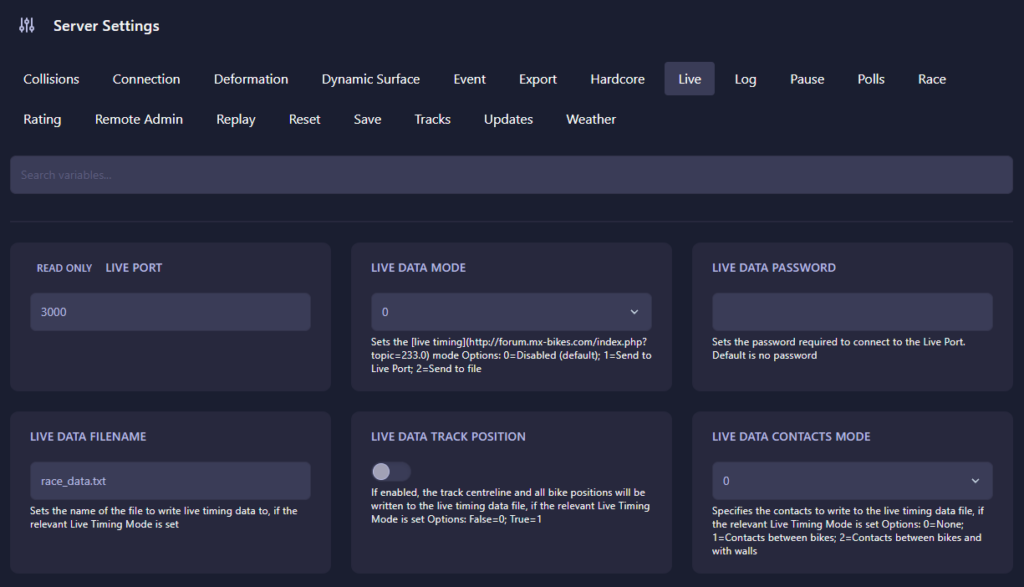
From the top configuration menu, click on Live. This section controls how real-time server data is generated and transmitted.
The Live page includes the following settings:
- Live Port: Defines the network port used for live timing data transmission. The default value is
3000. - Live Data Mode: Determines how live timing information is generated.
- 0: Disabled.
- 1: Send live data directly through the Live Port.
- 2: Write live timing data into a file.
- Live Data Password: Defines an optional password required for connecting to the Live Port.
- Live Data Filename: Sets the file name used when saving live timing data if file output mode is enabled. Default value:
race_data.txt. - Live Data Track Position: Determines whether track centerline data and bike positions are included in generated files.
- 0 (False): Position information disabled.
- 1 (True): Position information enabled.
- Live Data Contacts Mode: Determines which contact information becomes available in generated live data.
- 0: No contacts included.
- 1: Include contacts between bikes.
- 2: Include contacts between bikes and wall impacts.
Live data functionality makes it easier to build advanced race monitoring systems, broadcast race events, or generate real-time statistics for players and spectators.
Step 4: Start Your Server
Return to the server dashboard and click Start. Your MX Bikes server will now initialize with the updated live timing and real-time data settings.
Real-time race tracking and competitive events require reliable infrastructure with consistent network performance. Host your races with GGServers MX Bikes Server Hosting for low latency, powerful hardware, and optimized multiplayer performance.