 Billing
& Support
Billing
& Support Multicraft
 Game
Panel
Game
Panel



How to Configure Collision Settings on Your MX Bikes Server
In MX Bikes, managing how riders interact physically on the track is essential for tailoring your server’s gameplay experience. Whether you want to prevent frustrating pile-ups during practice sessions or safeguard competitive races from high-latency desync, the Collisions tab on your server panel provides the tools you need. This guide will walk you through configuring both the Disable Collisions and Collision Ping Limit settings using the GGServers panel.
Step 1: Stop Your MX Bikes Server
To safely apply changes to the core physics and network simulation engine of your server, you must first stop the instance. Go to your GGServers Control Panel, select your MX Bikes server, and click the Stop button. Wait until the dashboard status reads “Offline.”

Step 2: Navigate to Server Settings
With the server stopped, look at the left sidebar menu under the Advanced category. Click on the Server Settings button to reveal the comprehensive configuration suite for your server.

Step 3: Locate the Collisions Tab and Adjust Settings
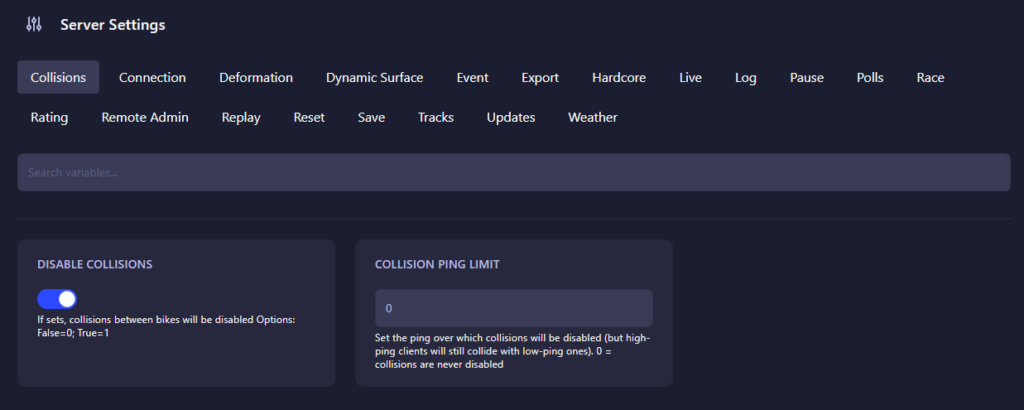
Inside the Server Settings suite, click on the first sub-tab labeled Collisions. Here, you will configure two critical variables that dictate bike physical interactions and netcode management:
Disable Collisions
This setting controls whether bikes can physically collide, crash, or block one another on the track. Enter the numerical value that represents your preferred gameplay style:
- 0: Collisions enabled (Bikes will physically bump and interfere with each other—ideal for realistic, competitive racing grids).
- 1: Collisions disabled (Bikes pass right through one another like ghosts—perfect for clean practice sessions or time-trial servers).
Collision Ping Limit
High latency can cause players to stutter or “warp” across the track, causing unfair accidents. This feature automatically disables collisions for players whose connections exceed a specific threshold, protecting low-ping racers from desync crashes:
- 0: Safety threshold disabled (Collisions are never turned off due to high latency).
- Custom Value (e.g., 150 – 200): Enter the maximum allowed ping in milliseconds. Riders exceeding this limit will automatically become “ghosts” to avoid disrupting the rest of the lobby.
The GGServers configuration panel automatically commits your modifications as soon as you finish editing either input field.
Step 4: Start Your Server
Return to the main console screen and click Start. Your MX Bikes server will spin back up with the modified collision parameters active, ensuring a highly tailored racing environment for your community!
Pushing the limits on the track requires responsive physics and lag-free tracking. To ensure your physics loops and lap times run smoothly, host your racing community with GGServers MX Bikes Server Hosting. Our premium hardware ensures enterprise-grade performance for every race!