 Billing
& Support
Billing
& Support Multicraft
 Game
Panel
Game
Panel



How to Change the Zombie Amount Multiplier on Your HumanitZ Server
The density of the undead population is one of the most effective ways to scale the difficulty of your HumanitZ server. The Zombie Amount Multiplier allows you to increase or decrease the total number of zombies that spawn throughout the world. Whether you want a quiet, desolate landscape or a world overflowing with massive hordes, this guide will show you how to adjust the spawn density using the GGServers panel.
Step 1: Stop Your HumanitZ Server
Because zombie spawns are tied to the world’s initialization and performance allocation, you must stop the server to apply changes to the population density. Access your GGServers Control Panel, select your instance, and click the Stop button. Wait for the status to show as “Offline.”

Step 2: Access Server Settings
Once the server is offline, locate the sidebar menu on the left side of the panel. Click on the Server Settings button to open the configuration dashboard for your HumanitZ dedicated server.

Step 3: Open the General Settings Tab
In the Server Settings menu, click on the General Settings tab. This section contains the primary multipliers for world entities and AI population.

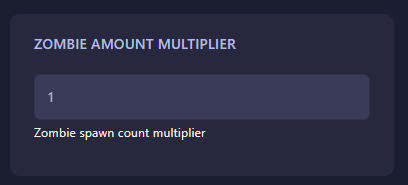
Step 4: Adjust the Zombie Amount Multiplier
Locate the field labeled Zombie Amount Multiplier. This value is a multiplier based on the default spawn rate (1.0). Adjust the value to fit your preferred challenge:
- 0.5: Half the normal amount of zombies (Lighter challenge).
- 1.0: Default zombie population.
- 2.0: Double the amount of zombies (Heavy hordes).
The GGServers panel automatically saves your changes as soon as you finish editing the field.
Step 5: Start Your Server
Return to the main dashboard and click Start. Your HumanitZ server will now boot with the updated zombie density. Prepare your survivors—higher multipliers will result in much larger encounters!
Managing high zombie counts requires a server with serious processing power. To ensure your game remains smooth even with massive hordes on screen, host your world with GGServers HumanitZ Server Hosting. Our high-performance hardware is designed to handle dense populations without compromising on performance!