 Billing
& Support
Billing
& Support Multicraft
 Game
Panel
Game
Panel



How to Automatically Update Your HumanitZ Server
Keeping your HumanitZ server updated is crucial for ensuring compatibility with the latest game patches, bug fixes, and new content drops. Manually checking for updates can be tedious, but the GGServers panel allows you to automate this process. By enabling the automatic update feature, your server will check for and apply the latest SteamCMD updates every time it boots, ensuring your survivors never miss a beat. This guide will show you how to toggle this feature on the GGServers panel.
Step 1: Stop Your HumanitZ Server
Because the update process involves modifying core game files via SteamCMD, you cannot change this setting while the server is active. Access your GGServers Control Panel, select your HumanitZ instance, and click the Stop button. Ensure the status shows as “Offline” before proceeding to the next step.

Step 2: Access Server Settings
Once the server is fully stopped, navigate to the sidebar on the left side of the panel. Click on the Server Settings button. This section contains the primary launch parameters and configuration toggles for your HumanitZ dedicated server.

Step 3: Open the General Settings Tab
In the Server Settings menu, look for the General Settings tab. This area manages the core functionality of your instance, including the SteamCMD update logic required for HumanitZ.

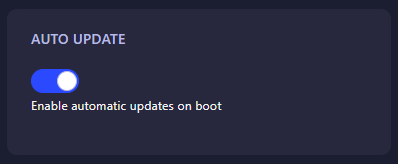
Step 4: Enable “Automatically Update”
Locate the setting labeled Automatically Update. Toggle this switch to the “on” position. Once enabled, the panel will automatically trigger a SteamCMD check every time the server starts. The GGServers panel automatically saves your changes, so no further action is needed in this menu.
Step 5: Start Your Server
Go back to your main dashboard and click Start. You will see the console initialize a SteamCMD session to verify your files. Once complete, your HumanitZ server will be online and fully updated to the latest version!
Survival is hard enough—don’t let outdated files make it harder. To ensure your server remains stable and lag-free, host your world with GGServers HumanitZ Server Hosting. Our high-performance NVMe storage and 24/7 support are built to keep your apocalypse running smoothly!