 Billing
& Support
Billing
& Support Multicraft
 Game
Panel
Game
Panel



How to Change Your HumanitZ Server Save Name
The Save Name determines which world file your HumanitZ server loads upon startup. Changing this allows you to maintain multiple different playthroughs or start a completely fresh world without deleting your previous progress. By simply updating the save-file name in the panel, the server will generate a new world if the name doesn’t already exist. This guide will show you how to manage your save names on the GGServers panel.
Step 1: Stop Your HumanitZ Server
Since the server needs to point to a different directory or file on the disk, you must stop the server to prevent file conflicts. Access your GGServers Control Panel, select your instance, and click the Stop button. Ensure the status is “Offline” before moving forward.

Step 2: Access Server Settings
With the server stopped, go to the left-hand sidebar menu and click on Server Settings. This area contains the technical launch arguments for your HumanitZ world.

Step 3: Open the General Settings Tab
Inside the Server Settings section, click on the General Settings tab. This is where the core file paths and save configurations are managed.

Step 4: Update the Save Name
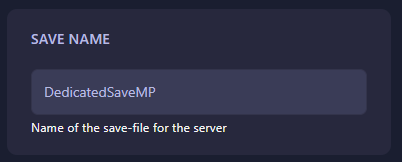
Locate the field labeled Save Name. Enter the name of the save-file you wish to load or create. If you enter a new name, the server will create a fresh world under that name the next time it starts. The GGServers panel saves this change automatically.
Step 5: Start Your Server
Return to the dashboard and click Start. The server will now initialize using the world data associated with your new Save Name. You’re ready to survive in your selected world!
Switching worlds is a great way to try out different survival strategies. To ensure your world data is always safe and high-performing, host with GGServers HumanitZ Server Hosting. Our NVMe SSDs provide the fastest read/write speeds for your save files!