 Billing
& Support
Billing
& Support Multicraft
 Game
Panel
Game
Panel



How to Change Your HumanitZ Server Password
Whether you want to host a private session for friends or protect your community from unwanted visitors, setting a password is the best way to secure your HumanitZ server. By adding a password requirement, only players with the correct credentials can join the fray. This guide will show you how to set or change your server password using the GGServers panel.
Step 1: Stop Your HumanitZ Server
Modifying security credentials requires a full reload of the server’s configuration files. Access your GGServers Control Panel, select your HumanitZ instance, and click the Stop button. Wait for the status to switch to “Offline” before proceeding.

Step 2: Access Server Settings
Once the server is offline, navigate to the sidebar on the left side of the panel. Click on the Server Settings button to access the primary configuration hub for your instance.

Step 3: Open the General Settings Tab
In the Server Settings menu, select the General Settings tab. This section contains the core parameters for your server, including access control and password management.

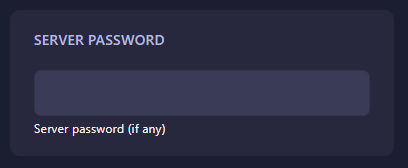
Step 4: Update the Server Password
Locate the field labeled Server Password. Enter your desired password into the text box. If you wish to make the server public again, simply clear the field. The GGServers panel saves your changes automatically, so you can move on as soon as you have finished typing.
Step 5: Start Your Server
Go back to the main dashboard and click Start. Your HumanitZ server will now boot with the new password active. Ensure you share the credentials with your players so they can successfully join through the in-game prompt!
Security is key to building a great community. To keep your private sessions running smoothly without lag, host your world with GGServers HumanitZ Server Hosting. Our premium hardware ensures a seamless experience for you and your trusted survivors!