 Billing
& Support
Billing
& Support Multicraft
 Game
Panel
Game
Panel



How to Change Your HumanitZ Server Max Players
Adjusting the player capacity of your HumanitZ server is essential for managing your community size and ensuring stable performance. Whether you are hosting a small, intimate group of survivors or opening your world to a larger population, the GGServers panel allows you to easily scale your slot count. This guide will show you how to update the maximum player limit for your instance.
Step 1: Stop Your HumanitZ Server
Slot counts and player limits are checked by the game engine during the boot sequence. To update this limit, you must first stop your server. Access your GGServers Control Panel, select your HumanitZ instance, and click the Stop button. Wait for the status to confirm as “Offline.”

Step 2: Access Server Settings
Once the server is offline, navigate to the sidebar menu on the left side of the panel. Click on the Server Settings button to enter the configuration area for your HumanitZ dedicated server.

Step 3: Open the General Settings Tab
In the Server Settings section, click on the General Settings tab. This section manages the primary gameplay parameters, including how many survivors can inhabit your world at once.

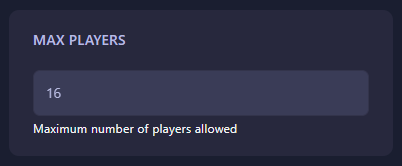
Step 4: Update Max Players
Locate the field labeled Max Players. Enter the maximum number of players you want to allow on your server. The GGServers panel will automatically save your changes, ensuring the new limit is ready for the next startup.
Step 5: Start Your Server
Go back to the main dashboard and click Start. Your HumanitZ server will now boot with the updated player capacity. You can verify this change by checking the server’s status on the dashboard or finding your server in the in-game browser!
A growing community needs a stable home. To ensure your server handles more players without lag, host your world with GGServers HumanitZ Server Hosting. Our high-clock speed CPUs and optimized network are designed to support large survivor groups with ease!