 Billing
& Support
Billing
& Support Multicraft
 Game
Panel
Game
Panel



How to Change Your HumanitZ Admin Password
Admin privileges allow you to manage your HumanitZ server directly from the in-game console, giving you control over kicks, bans, and other essential moderator commands. To prevent unauthorized users from gaining access to these tools, it is highly recommended to set a strong, unique Admin Password. This guide will walk you through the process of updating your administrative credentials on the GGServers panel.
Step 1: Stop Your HumanitZ Server
To ensure the new administrative credentials are correctly loaded into the server’s memory, you must perform a clean restart. Start by accessing your GGServers Control Panel, selecting your instance, and clicking the Stop button. Wait until the status indicator displays “Offline.”

Step 2: Access Server Settings
Once the server is stopped, locate the sidebar on the left side of the screen. Click on the Server Settings button. This menu contains the configuration tabs for all launch-related parameters and security settings.

Step 3: Open the General Settings Tab
Inside the Server Settings menu, click on the General Settings tab. This area manages the core functionality of your HumanitZ instance, including the administrative access fields.

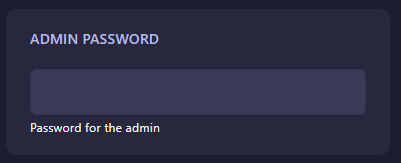
Step 4: Update the Admin Password
Find the field labeled Admin Password. Enter your new secure password into the box. As with other settings on the GGServers panel, this change is saved automatically once you finish typing. Make sure to keep this password confidential to maintain control over your server.
Step 5: Start Your Server
Return to the main dashboard and click Start. Once the server is “Running,” you can use this password in-game to log in as an administrator and execute console commands. Your HumanitZ server is now secure and ready for management!
Effective management is the key to a healthy community. To ensure you have the best tools and performance for your administrative tasks, host with GGServers HumanitZ Server Hosting. Our premium network and hardware provide the stability you need to lead your survivors!