 Billing
& Support
Billing
& Support Multicraft
 Game
Panel
Game
Panel



Want to move your local single-player progress or a previous save onto a dedicated machine? This walkthrough covers how to upload an existing world to your Conan Exiles server so you and your friends can pick up right where you left off.
To transfer your map, you will need to migrate your game.db file—this file holds everything from player levels and inventories to your custom bases and world states. Below is the step-by-step process to extract, upload, and apply your save safely.
Important Setup Prerequisites
To ensure everything loads smoothly without breaking your save data, take care of these two items before proceeding with the upload:
- Match your mods: If your local save used any Steam Workshop mods, make sure those exact mods are already installed and active on your server first.
- Verify the map choice: Ensure your server control panel is configured to run the exact same map (e.g., The Exiled Lands or Isle of Siptah) as the save file you are importing.
Step 1: Locating Your Single-Player Save File
- Open your Steam Library on your computer.
- Right-click on Conan Exiles, then choose Manage and select Browse Local Files.
- A file explorer window will pop up. From there, double-click into the following folders:
/ConanSandbox/Saved/ - Look for the
game.dbfile (or your specificgame_X.dbslot file). Keep this window open or copy the file to your desktop for easy access.
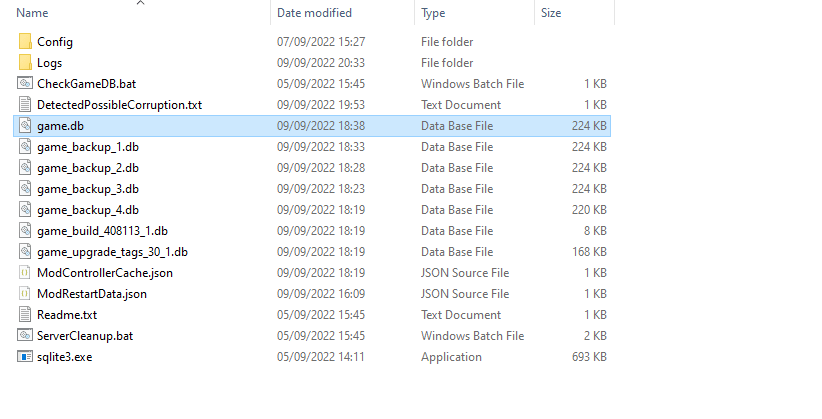
Step 2: Transferring the World Save to Your Server
- Log into your control panel and Stop your server.
- Connect to your server using an external FTP program like FileZilla (or use the built-in Files manager tool).
- On the server-side directory, navigate through the folders to:
/ConanSandbox/Saved/ - Drag and drop your local
game.dbfile into this server directory to overwrite or replace the existing file. (Note: If you are overwriting an existing world, you may want to download a backup of the old file first just in case). - Once the file transfer finishes, return to your main control panel dashboard and click Start to launch the server with your uploaded world.
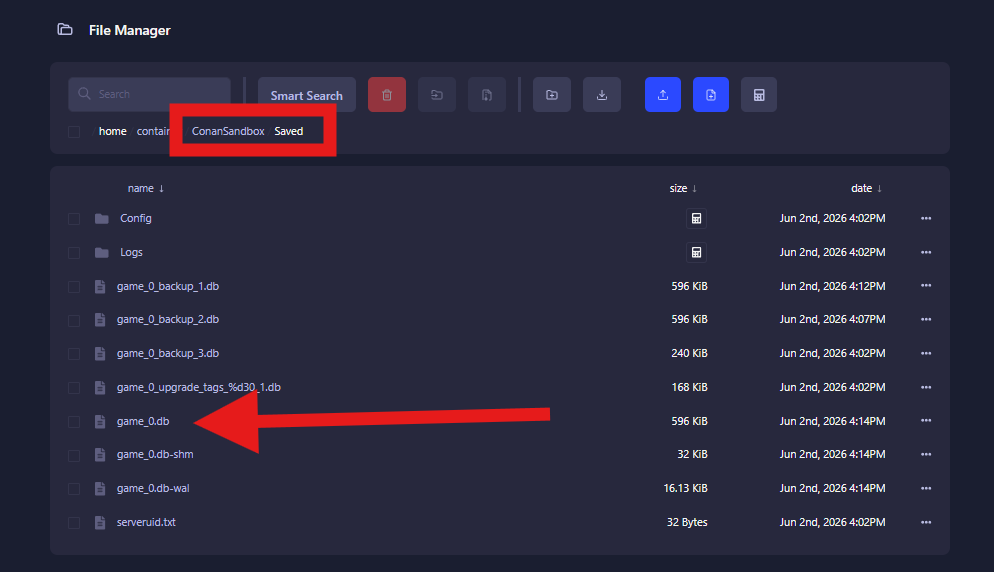
Running your Conan Exiles server on GGServers ensures you get reliable performance, low latency, and easy control panel management for testing new game updates. Use code KB30 at checkout to receive 30% off your first invoice when ordering your server.
If you need further help, our support team is available 24/7 at: https://ggservers.com/billing/submitticket.php