 Billing
& Support
Billing
& Support Multicraft
 Game
Panel
Game
Panel



How to Set a Password on Your Enshrouded Server
Securing your Enshrouded world is the best way to prevent griefing and ensure only your friends or community members can access your progress. By setting a Server Password, any player attempting to join through the in-game browser will be prompted for authentication. Follow the steps below to secure your GGServers instance.
Step 1: Access the Panel
Log in to your GGServers Control Panel and select your Enshrouded server. This dashboard allows you to manage the security and privacy settings of your realm.
Step 2: Stop Your Server
To ensure the new security credentials are properly encrypted and applied to the server’s configuration files, you must first stop the server. Click the red Stop button on the main console. Wait for the status indicator to show “Offline” before proceeding.

Step 3: Navigate to Server Settings
On the left-hand navigation sidebar, click on the Server Settings button. This menu provides access to all the primary configuration categories for your Enshrouded instance.

Step 4: Open General Settings
In the Server Settings area, select the General Settings tab. This section contains the core identity and security parameters for your Enshrouded server.

Step 5: Change the Setting That Will Auto Save
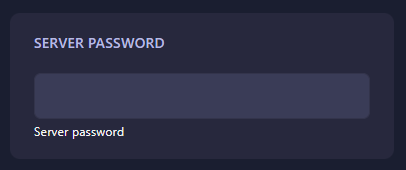
Locate the box labeled Server Password. Enter the password you wish to use for your server. The GGServers panel features an automatic save function, so your new password will be stored the moment you finish typing. Ensure your password is easy for your friends to remember but difficult for strangers to guess.
Step 6: That is it!
Your server is now private! Return to the main dashboard and click Start. Your Enshrouded server will now require the password you just set for anyone attempting to join the world.
Reclaim the realm with total peace of mind using Enshrouded server hosting at GGServers. Our intuitive panel and high-performance hardware make managing your private server simple and secure!