 Billing
& Support
Billing
& Support Multicraft
 Game
Panel
Game
Panel



General Info
Keeping your Minecraft server up to date is an important part of maintaining performance, security, and access to the latest game features.
Updating your server version ensures compatibility with newer Minecraft clients, introduces bug fixes and improvements, and allows players to enjoy newly released content.
However, updating should be done carefully to avoid data loss or plugin/mod conflicts. This guide will walk you through the general process of updating your Minecraft server version safely and efficiently.
How to Update the Version
- Access your server’s control panel
- Stop the server
- Recommended: Create a backup of your world. It can get corrupted in some updates
- Access
Server Type Installertab on the left side menu

- Select the Server Type you need to use and the newest version (or the version you want to use)
- Press
Install
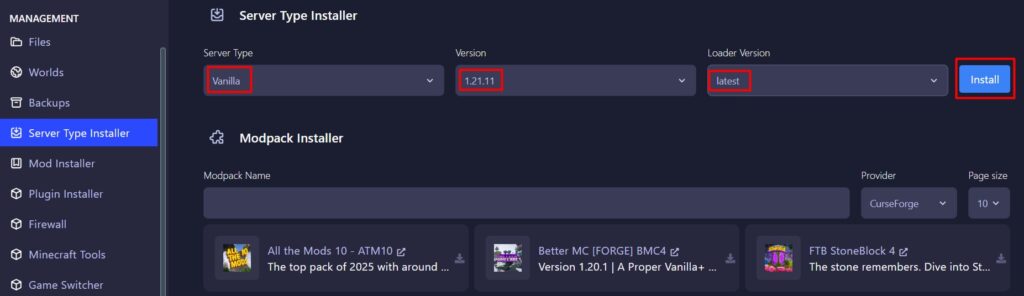
- Wait for it to be installed and start the server
Using Plugins/Mods
Using Plugins
- Most plugins are compatible with multiple server versions, this should be specified on their spigot/github/modrinth/wiki page.
- If this information is nowhere to be found, the plugin will display more details in the console when the server is starting (if it’s loading or erroring).
Using Mods
- When using mods, it’s mandatory to update/match the mods version with your server version. The server will crash otherwise.
- Mods are usually not compatible for multiple versions.
- IMPORTANT: The world is more likely to get corrupted if the server contains mods. It’s highly recommended to create a backup.