 Billing
& Support
Billing
& Support Multicraft
 Game
Panel
Game
Panel



General Info
If you’re experiencing connection issues, or are unable to join a server, your firewall may be blocking the game. This guide will show you how to allow Minecraft through your firewall on both Windows and Mac.
How to Allow Minecraft Through Firewall on Windows
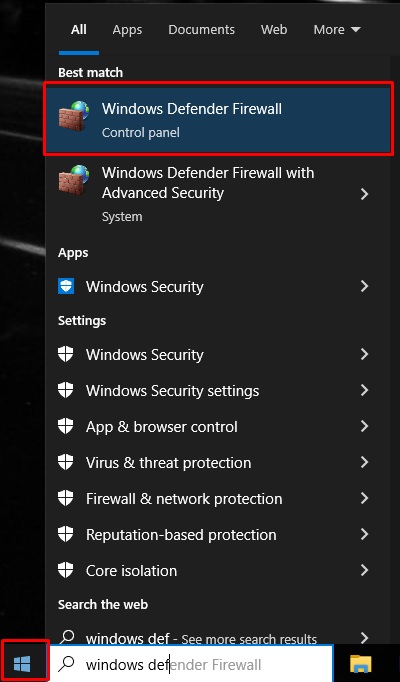
- Open the Start Menu and search for Windows Defender Firewall.
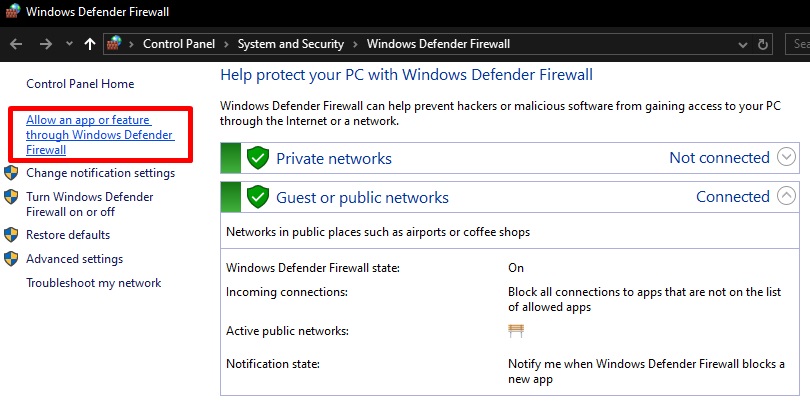
- Click on Allow an app or feature through Windows Defender Firewall.
- Click the Change Settings button.
- Click Allow another app.
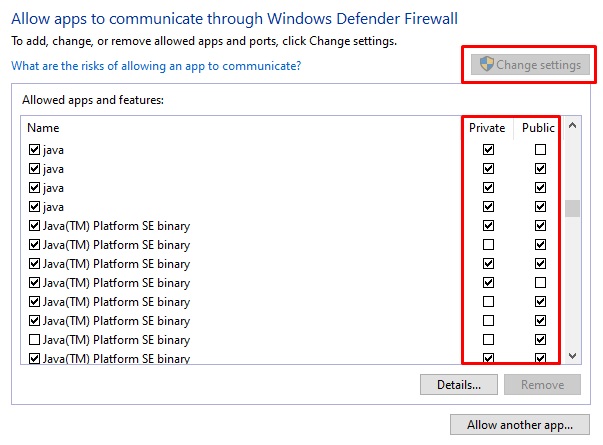
- Tick both Private and Public on any of the following:
– java
– javaw
– Java(TM) Platform SE binary
– OpenJDK Platform binary
– Minecraft
– minecraft
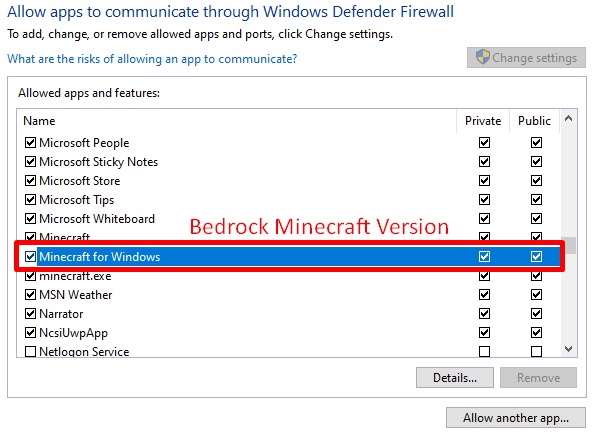
- Click OK to save your changes.
How to Allow Minecraft Through Firewall on Mac
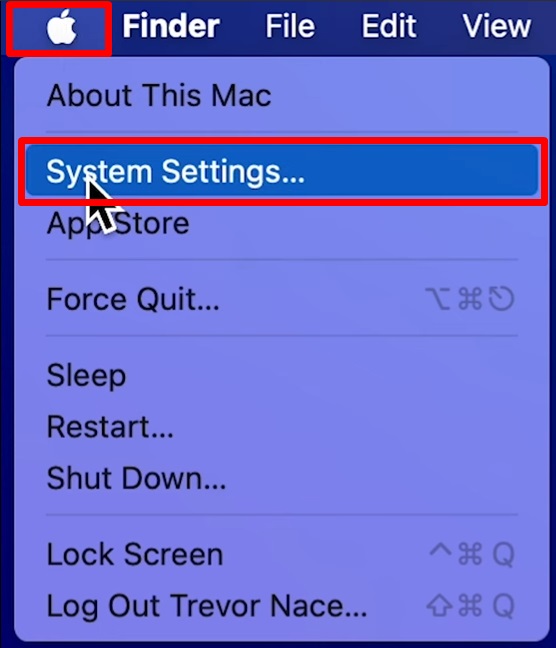
- Click the Apple Menu and open System Settings.
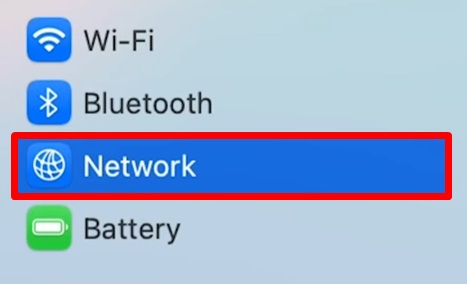
- Navigate to Network → Firewall.
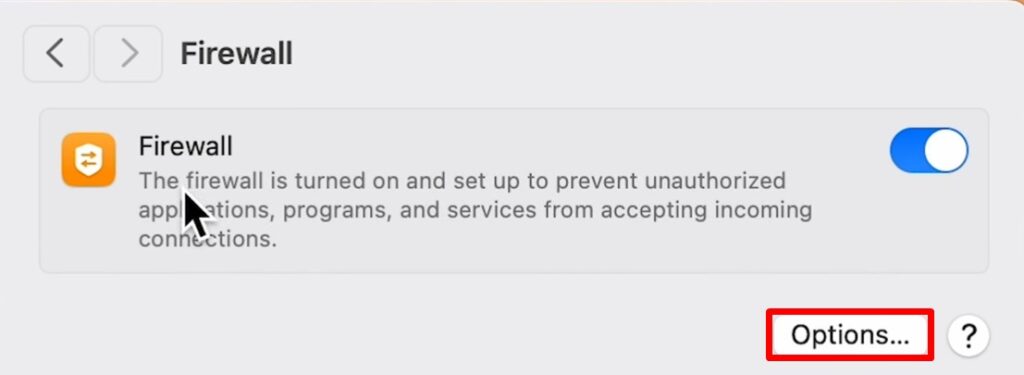
- Click Options.
- Click the + button to add a new application.
- Search for anything related to:
– java
– javaw
– Java(TM) Platform SE binary
– OpenJDK Platform binary
– Minecraft
– minecraft - Set it to Allow incoming connections.
- Click OK and apply the changes.
FAQ
Why is Minecraft blocked by my firewall?
Your firewall may block Minecraft to prevent unauthorized network access. This is common when installing the game or running it for the first time.
Do I need to allow both Java and Minecraft?
Yes. Minecraft Java Edition runs through Java, so you must allow everything relate do to java as well as Minecraft.
Is it safe to allow Minecraft through firewall?
Yes, as long as you are using trusted servers. Allowing the application simply lets it communicate over the network.
Can this fix multiplayer issues?
Yes. Firewall restrictions are one of the most common causes of multiplayer connection issues in Minecraft.