 Billing
& Support
Billing
& Support Multicraft
 Game
Panel
Game
Panel



How to Change the Patchline on Your Hytale Server
In Hytale, “Patchlines” are specific update channels that determine which version of the game your server runs. For example, you might use the Stable patchline for a reliable player experience or the Pre-release patchline to test the latest experimental features and bug fixes before they go live. On the GGServers panel, switching between these channels is a seamless process. This guide will show you how to change your Patchline settings safely.
Step 1: Stop Your Hytale Server
Changing the Patchline involves the server downloader fetching different versions of the Hytale game files. To prevent file conflicts or data loss during this update, log in to your GGServers Control Panel and click the Stop button. Ensure the console shows that the server has fully shut down.

Step 2: Navigate to Server Settings
On the left-hand navigation sidebar, locate and click on the Server Settings button. This menu provides access to the high-level configuration options for your Hytale instance.

Step 3: Open General Settings
Within the Server Settings categories, click on the General Settings tab. This section contains the core technical toggles, including the versioning and update channel options.

Step 4: Update the Patchline Setting
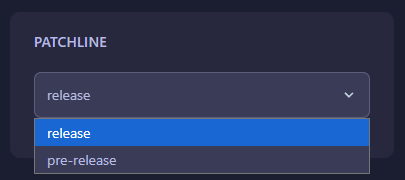
Locate the box labeled Patchline. Here, you can select or type the name of the update channel you wish to use (such as release or pre-release). Switching to pre-release will allow your server to download the latest hotfixes currently being stress-tested by Hypixel Studios. The panel will automatically save your choice once modified.
Step 5: Start Your Server
Go back to the main dashboard and click Start. Upon startup, the GGServers auto-downloader will check the selected patchline, download any necessary updates, and launch the server with the new version. Your players will need to ensure their Hytale launcher is set to the same patchline to connect!
Staying on the cutting edge of Hytale development is easy with the right host. For fast updates and reliable performance across any patchline, choose Hytale Server Hosting at GGServers. Our automated systems ensure your server is always running the latest version of Orbis!