Billing
& Support
Billing
& Support Multicraft
 Game
Panel
Game
Panel



Hytale Camera Guide: How to Change View Mode and Third-Person Perspective
With Hytale finally in our hands, players are discovering the beautiful world of Orbis from various angles. While many prefer the immersion of a first-person perspective, switching to third-person mode is essential for admiring your character’s armor, building complex structures, or gaining a better field of view during combat. This guide will show you how to toggle your view and customize your keybinds.
Step 1: Understanding the Default First-Person View
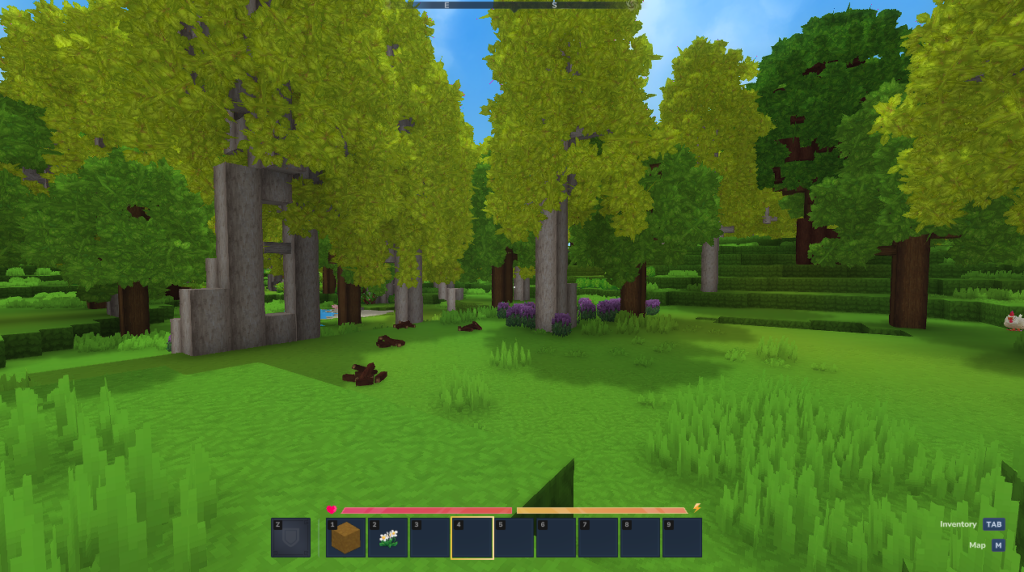
When you first load into a Hytale server, the game defaults to a first-person perspective. This mode is perfect for precise block placement and immersive exploration, allowing you to see the world through your avatar’s eyes.
Step 2: Toggling Third-Person Mode (The “V” Key)
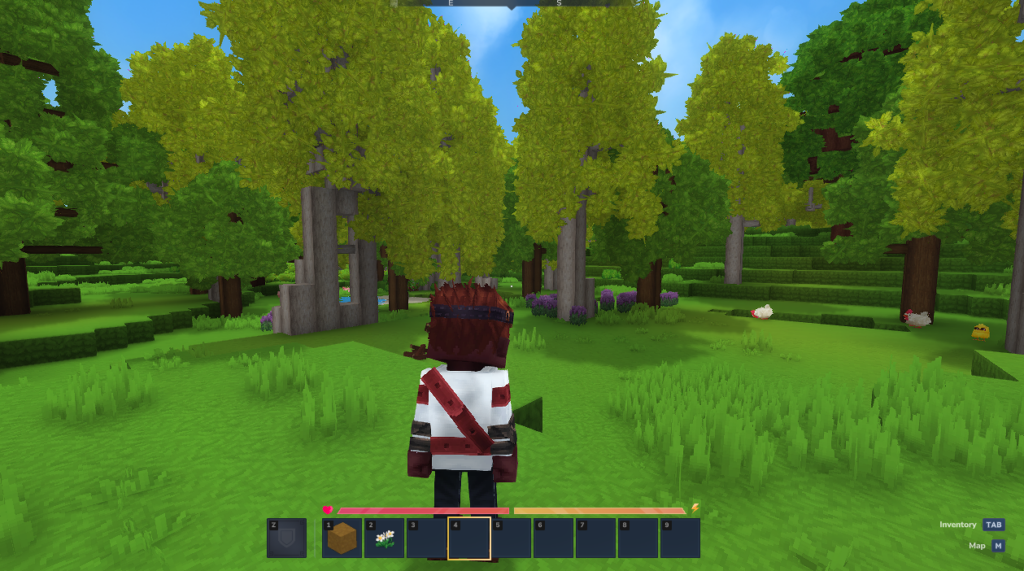
To quickly switch your perspective, press the V key on your keyboard. This is the default toggle for Hytale’s camera system. Pressing it once will pull the camera back into a third-person view, allowing you to see your character’s full model and equipment.
Step 3: Accessing the Game Settings
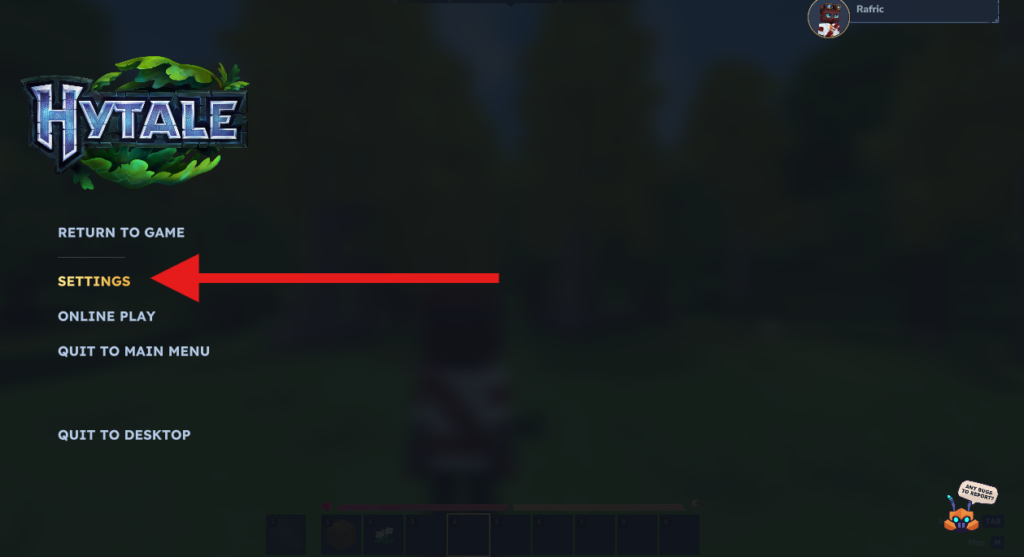
If the default key doesn’t suit your playstyle, you can easily remap it. Press the Esc key to open the main menu and select the Settings icon to begin customizing your user experience.
Step 4: Navigate to the Controls Menu
Within the Settings interface, click on the Controls tab. This area allows you to modify how you interact with the game, including movement, combat, and camera management.
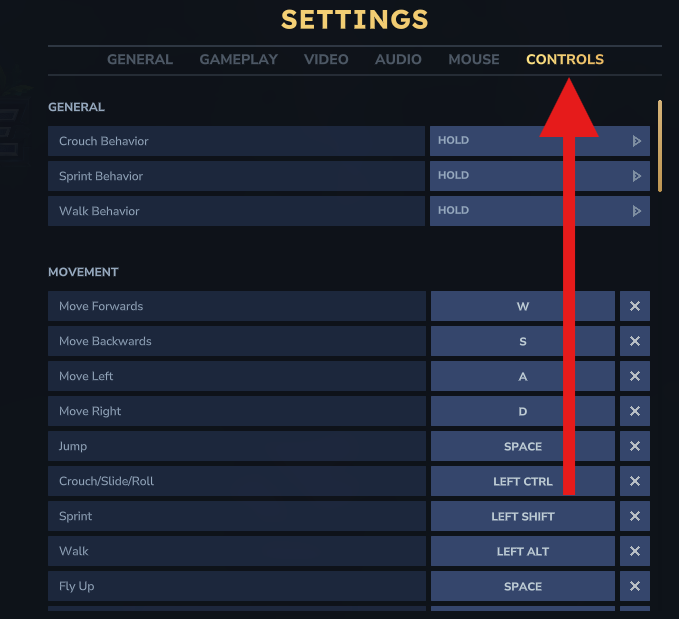
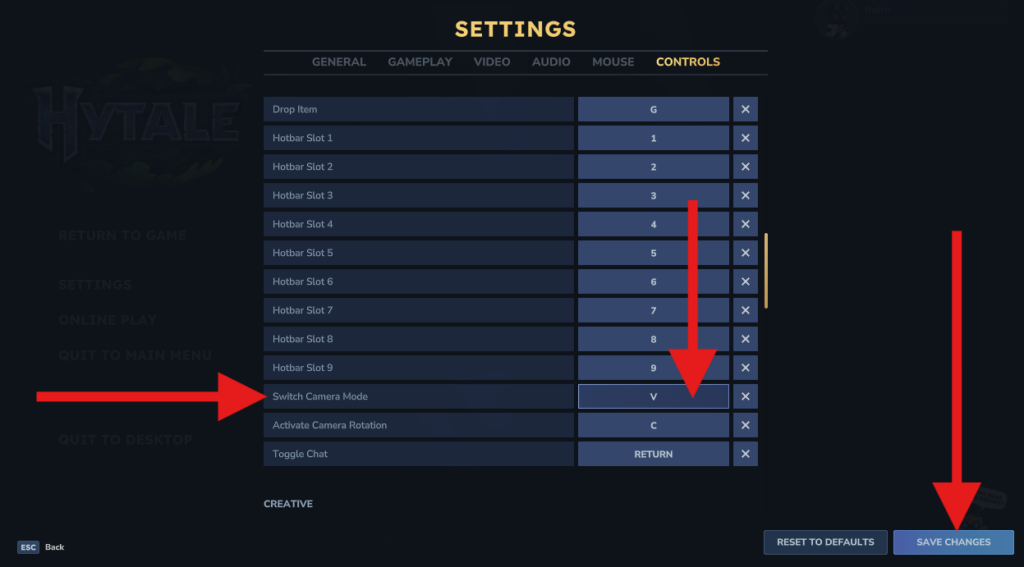
Step 5: Remap the Switch Camera Mode Key
Scroll down through the list of controls until you find the entry labeled Switch Camera Mode. Click on the current key assignment and press any new key on your keyboard to remap it. Once set, you can toggle between perspectives with your preferred button!