 Billing
& Support
Billing
& Support Multicraft
 Game
Panel
Game
Panel



How to Change View Distance on Your Hytale Server
View Distance is one of the most important settings for balancing visual quality and server performance. This setting determines how many chunks the server will load and send to the player’s client at once. A higher View Distance allows players to see further into the beautiful landscapes of Orbis, while a lower value can significantly reduce RAM and CPU usage on your server. This guide will show you how to easily adjust this value using the GGServers panel.
Step 1: Access the Panel and Stop Your Server
To ensure that the Hytale engine correctly re-calculates the chunk loading parameters, you must first stop your server. Log in to your GGServers Control Panel, select your Hytale instance, and click the red Stop button. Wait for the status to change to “Offline” before proceeding.

Step 2: Navigate to Server Settings
On the left-hand navigation sidebar, locate and click the Server Settings button. This menu provides access to the high-level configuration options that govern your multiplayer world.

Step 3: Open the General Settings Tab
Within the Server Settings menu, click on the General Settings tab. This section contains the primary identity and performance toggles for your Hytale server, allowing you to manage chunk settings without editing raw JSON files.

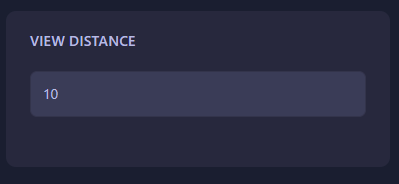
Step 4: Adjust the View Distance Value
Locate the box labeled View Distance. Enter your desired value in chunks. For a standard survival experience, a value of 10 to 12 is recommended. If you have a high-performance server and want maximum visibility, you can increase this, but be mindful of the increased memory demand. The GGServers panel will automatically save your changes once the value is entered.
Step 5: Restart Your Server
Return to the main dashboard and click Start. Your Hytale server will now boot up with the new View Distance setting applied, optimizing the experience for your specific player count and hardware!
Whether you want to see for miles or optimize your server for a massive player base, GGServers Hytale Server Hosting gives you the control you need. Our optimized NVMe storage ensures that chunks load quickly and smoothly, no matter your view distance settings!