 Billing
& Support
Billing
& Support Multicraft
 Game
Panel
Game
Panel



How to Change the Steam Query Port on Your Enshrouded Server
The Steam Query Port is a vital component for server visibility, allowing the Steam Master Server list to communicate with your instance. In some cases, you may need to adjust this port to resolve connection conflicts or to customize your network configuration. Follow the steps below to modify this setting using the GGServers panel.
Step 1: Access the Panel
Log in to your GGServers Control Panel and select your Enshrouded server. This dashboard allows you to manage all technical network parameters for your game world.
Step 2: Stop Your Server
To ensure that the new port assignment is correctly bound to your server process, you must first stop the server. Click the red Stop button on the main console. Wait for the status indicator to show “Offline” before moving to the settings menu.

Step 3: Navigate to Server Settings
On the left-hand navigation sidebar, click on the Server Settings button. This menu provides access to the primary configuration categories for your Enshrouded instance.

Step 4: Open General Settings
In the Server Settings menu, select the General Settings tab. This section handles the core network and identity rules for your Enshrouded server.

Step 5: Change the Setting That Will Auto Save
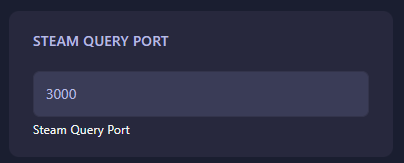
Locate the box labeled Steam Query Port. Enter the new port number required for your configuration. The GGServers panel features an automatic save function, so your changes will be recorded the moment you finish entering the value in the box.
Step 6: That is it!
Your network configuration has been updated! Return to the main dashboard and click Start. Your Enshrouded server will now use the new Steam Query Port to communicate with the master server list.
Optimize your multiplayer experience with Enshrouded server hosting at GGServers. Our powerful panel and high-speed network ensure your world is always reachable and lag-free!