 Billing
& Support
Billing
& Support Multicraft
 Game
Panel
Game
Panel



How to Change the Maximum Player Count on Your Black Mesa Server
In Black Mesa, the Max Players setting defines the total number of scientists and security guards who can join your multiplayer sessions simultaneously. Whether you are hosting a small tactical skirmish or a large-scale deathmatch, adjusting your server’s capacity is easily handled through the GGServers panel. Follow the steps below to scale your server’s player slots.
Step 1: Access the Panel
Log in to your GGServers Control Panel and select your Black Mesa server. This dashboard is your central hub for adjusting the technical capacity of your instance.
Step 2: Stop Your Server
To ensure that the new player limit is correctly applied to the Source engine’s startup parameters, you must first stop the server. Click the red Stop button on the main console and wait for the status to show “Offline” before moving to the settings.

Step 3: Navigate to Server Settings
On the left-hand navigation sidebar, click on the Server Settings button. This menu provides access to all the primary configuration categories for your Black Mesa instance.

Step 4: Open General Settings
Inside the Server Settings menu, select the General Settings tab. This section handles the fundamental configuration for your server, including identity and player slot management.

Step 5: Change the Setting That Will Auto Save
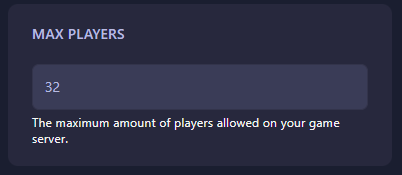
Locate the box labeled Max Players. Enter the total number of player slots you wish to have available. The GGServers panel features an automatic save function; your changes are recorded as soon as you finish typing. Be sure to select a count that fits your server’s resource plan for the best performance.
Step 6: That is it!
Your server capacity is now updated! Return to the main dashboard and click Start. Your Black Mesa server will now allow up to the new maximum number of players to connect to your multiplayer match.
Scale your deathmatch experience with Black Mesa server hosting at GGServers. Our high-priority CPUs and NVMe storage ensure that your facility remains smooth, even at full player capacity!