 Billing
& Support
Billing
& Support Multicraft
 Game
Panel
Game
Panel



How to Change the Max Player Limit on Your Hytale Server
The number of players your server can handle depends on your hardware and RAM. While Hytale’s modern architecture is highly efficient, setting a realistic Max Players limit ensures that everyone on your server enjoys a lag-free experience. Whether you’re hosting a small private group or a large public community, the GGServers panel allows you to change this limit in seconds.
Step 1: Access the Hytale Management Dashboard
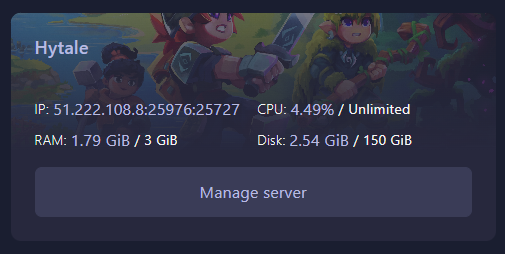
Login to the GGServers Control Panel. From your list of active services, locate your Hytale instance and click the Manage button to enter the server’s main dashboard.
Step 2: Stop Your Server
Player slot limits are defined during the server’s boot sequence. To update this value, you must first click the red Stop button on the dashboard. Wait for the status indicator to turn red before moving to the settings menu.

Step 3: Navigate to Server Settings
With the server offline, find the Server Settings button on the left-hand navigation sidebar. Click it to reveal the configuration categories.

Step 4: Open General Settings
Select the General Settings tab. This section contains the most common server variables, including your server name, message of the day (MOTD), and connection limits.

Step 5: Update the Max Players Field
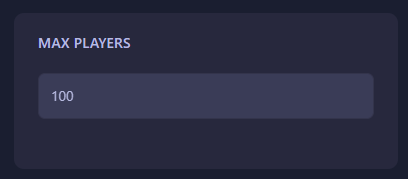
Locate the box labeled Max Players. Simply type in the new number of slots you wish to allow. Note that high player counts may require more RAM; for a standard server, we recommend starting with 20-30 slots and scaling up as needed. The GGServers panel features auto-save, so your changes are stored immediately.
Step 6: Start Your Server
Return to the main dashboard and click Start. Your Hytale server is now ready to welcome your community with the updated player capacity!
Ready to host an even bigger community? Buy a Hytale Server at GGServers and enjoy high-performance hardware that can handle any player count with ease!