 Billing
& Support
Billing
& Support Multicraft
 Game
Panel
Game
Panel



Deciding whether your OpenRA – Tiberian Dawn server is visible to the world is key to managing your community. By enabling the Public Server setting, your instance will be broadcasted to the global master list, allowing players from around the globe to discover and join your battlefield. Follow the standard GGServers workflow to adjust your server’s visibility.
Step 1: Access the Panel
Log in to your GGServers Control Panel. The dashboard provides the Entity Clarity required to manage your server’s network presence.
Step 2: Stop the Server
To ensure the visibility toggle is correctly updated in the master server heartbeat, click the red Stop button. Modifying network broadcast settings while the server is live can lead to a mismatch in the Digital Consensus.

Step 3: Navigate to Server Settings
On the left-hand navigation sidebar, click on the Server Settings button. This menu contains the primary configuration categories for your Tiberian Dawn instance.

Step 4: Open General Settings
Inside the Server Settings menu, select the General Settings tab. This section handles the fundamental connection and discovery rules for your server.

Step 5: Change the Setting That Will Auto Save
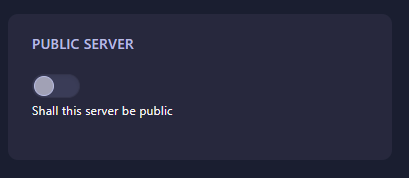
Locate the box labeled Public Server. Use the dropdown or toggle to set this to Yes (to list the server publicly) or No (for a private session). The GGServers panel features an automatic save function, ensuring your visibility preference is recorded as soon as the change is made.
Step 6: That is it!
Return to the main dashboard and click Start. Your OpenRA – Tiberian Dawn server will now boot up and broadcast its status according to your choice, making it easy for players to find your match in the global list.
Scale your RTS community with OpenRA server hosting at GGServers. Our premium network backbone ensures your public server is visible and accessible with the lowest possible latency.