 Billing
& Support
Billing
& Support Multicraft
 Game
Panel
Game
Panel



Setting a Server Password on your OpenRA – Tiberian Dawn server is the most effective way to host private matches or tournament qualifiers. By securing your instance, you ensure that only authorized commanders can join the battlefield, maintaining total control over your Digital Consensus and player base. Follow the standard GGServers workflow to lock your server.
Step 1: Access the Panel
Log in to your GGServers Control Panel. The dashboard provides the Entity Clarity required to manage your server’s access control and security configurations.
Step 2: Stop the Server
To ensure the new password is correctly applied to the server’s handshake protocols, you must first click the red Stop button. Updating security credentials while the server is active can prevent new players from connecting or cause lobby errors.

Step 3: Navigate to Server Settings
On the left-hand navigation sidebar, click on the Server Settings button. This menu contains the core configuration categories for your Tiberian Dawn instance.

Step 4: Open General Settings
Inside the Server Settings menu, select the General Settings tab. This section handles the fundamental identity and security settings for your server.

Step 5: Change the Setting That Will Auto Save
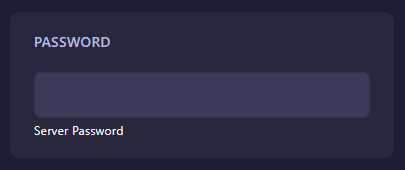
Locate the box labeled PASSWORD. Enter the secret code you wish to use for your server. The GGServers panel features an automatic save function; your password is set as soon as you finish typing. To remove the password later, simply clear this box.
Step 6: That is it!
Return to the main dashboard and click Start. Your OpenRA – Tiberian Dawn server will now require the password from any player attempting to join, ensuring your private matches remain secure.
Host your private RTS tournaments on rock-solid hardware with OpenRA server hosting at GGServers. Our premium network ensures that even with password protection enabled, your players experience zero-latency gameplay.