 Billing
& Support
Billing
& Support Multicraft
 Game
Panel
Game
Panel



How to Set a Server Password on Your Dune 2000 Server
Setting a server password is the best way to keep your matches on Arrakis private. By adding a password requirement, you can ensure that only your friends or clan members can join your game sessions, preventing random players from occupying slots. The GGServers panel makes it easy to secure your Dune 2000 server with just a few steps. Follow this guide to update your password settings.
Step 1: Stop Your Server
To change core security settings like the server password, you must first shut down the server process. Log in to your GGServers Control Panel, select your Dune 2000 service, and click the red Stop button. Wait for the status to show as “Offline” before moving to the next step.

Step 2: Access Server Settings
Once the server is offline, look at the sidebar on the left side of your panel. Click the Server Settings button to open the configuration menu for your Dune 2000 instance.

Step 3: Open General Settings
In the Server Settings menu, click on the General Settings tab. This section contains the primary identification and security fields for your server, including the name and password options.

Step 4: Enter Your New Password
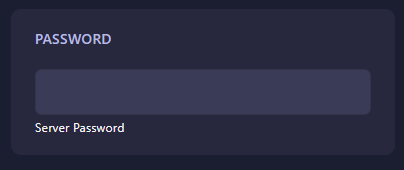
Scroll down to find the box labeled Password. Simply type your desired password into this field. The GGServers panel will automatically save your changes as soon as you finish typing. Ensure you choose a password that is easy to share with your teammates but hard for strangers to guess.
Step 5: Start Your Server
Go back to the main dashboard and click Start. Your Dune 2000 server is now password-protected! From now on, any player attempting to join will be prompted to enter the password you just set.
Keep your matches secure and private with Dune 2000 server hosting at GGServers. Our powerful control panel makes managing your server’s security as simple as possible!