 Billing
& Support
Billing
& Support Multicraft
 Game
Panel
Game
Panel



How to Set a Server Password on Your OpenRCT2 Server
Securing your OpenRCT2 server is the best way to ensure that only your friends or specific community members can join your park. By setting a Server Password, you prevent unauthorized players from connecting, while still allowing admins to join without needing to enter the code. The GGServers panel makes this security step quick and efficient. Follow the steps below to protect your server.
Step 1: Access the Panel
Log in to your GGServers Control Panel and select your OpenRCT2 server from the dashboard. This is where you can manage your server’s security and access rules.
Step 2: Stop Your Server
To ensure that the new password is correctly applied to the server’s authentication system, you must first stop the server. Click the red Stop button on the main console. Wait for the status indicator to show that the server is “Offline.”

Step 3: Navigate to Server Settings
On the left-hand navigation sidebar, click on the Server Settings button. This menu contains the primary configuration categories for your OpenRCT2 instance.

Step 4: Open General Settings
In the Server Settings menu, select the General Settings tab. This section manages the core identity and connection requirements for your server.

Step 5: Change the “Server Password” Setting
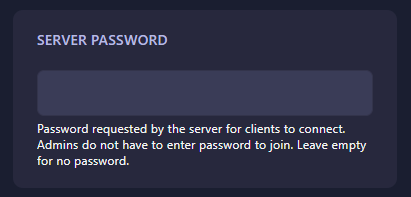
Locate the box labeled Server Password. Enter the password you wish to require for your players. If you want to remove the password and make your server public again, simply leave the box empty. The GGServers panel will automatically save your changes the moment you enter the new text.
Step 6: That is it!
Your server is now protected! Return to the main dashboard and click Start. Your OpenRCT2 server will now require the password you set for any client attempting to connect.
Enjoy a secure and private building experience with OpenRCT2 server hosting at GGServers. Our intuitive panel makes it easy to manage your park’s privacy and performance!