 Billing
& Support
Billing
& Support Multicraft
 Game
Panel
Game
Panel



How to Secure Your Soulmask Server with a Password
In Soulmask, setting a Server Password is the most effective way to create a private community. Once enabled, all players—including you—must enter the designated password to join the world through the in-game browser. This prevents unauthorized players from accessing your tribe’s progress. Follow the steps below to configure your server’s access security.
Step 1: Access the Panel
Log in to your GGServers Control Panel and select your Soulmask server. This dashboard serves as your central hub for managing world security and privacy.
Step 2: Stop Your Server
To ensure that the new password is correctly applied to the server’s startup parameters and encrypted, you must first stop the server. Click the red Stop button on the main console and wait for the status to show “Offline” before modifying the settings.

Step 3: Navigate to Server Settings
On the left-hand navigation sidebar, click on the Server Settings button to open the configuration menu for your Soulmask instance.

Step 4: Open General Settings
Within the Server Settings menu, select the General Settings tab. This section contains the primary identity fields for your server, including the name and password options.

Step 5: Change the Setting That Will Auto Save
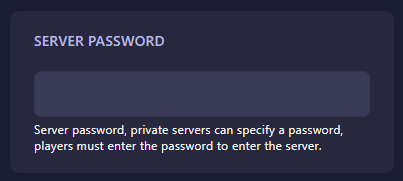
Locate the box labeled Server Password. Enter the password you wish to use for your private world. The GGServers panel features an automatic save function; your changes will be recorded as soon as you finish typing. Once a password is set, the server will transition to a private state upon the next boot.
Step 6: That is it!
Your server is now protected! Return to the main dashboard and click Start. Your Soulmask server will now require all connecting players to provide the password you just configured.
Protect your tribe with Soulmask server hosting at GGServers. Our intuitive panel and high-performance hardware ensure your private world remains secure and lag-free!