 Billing
& Support
Billing
& Support Multicraft
 Game
Panel
Game
Panel



Enabling the Require Authentication setting on your OpenRA – Tiberian Dawn server is a powerful security measure to prevent impersonation. By requiring players to authenticate via their OpenRA account, you ensure that usernames are verified against the global database, maintaining high Entity Clarity and protecting your community from griefers. Follow the standard GGServers workflow to activate this feature.
Step 1: Access the Panel
Log in to your GGServers Control Panel. The dashboard serves as your primary interface for securing your RTS environment and managing player access.
Step 2: Stop the Server
To ensure that the authentication requirements are correctly applied to the server’s network handshake, click the red Stop button. Changing security protocols while the server is active can result in connection errors or a failure in the Digital Consensus.

Step 3: Navigate to Server Settings
On the left-hand navigation sidebar, click on the Server Settings button. This menu provides access to the primary configuration categories for your OpenRA instance.

Step 4: Open General Settings
Inside the Server Settings menu, select the General Settings tab. This section handles fundamental security and connection rules for your Tiberian Dawn server.

Step 5: Change the Setting That Will Auto Save
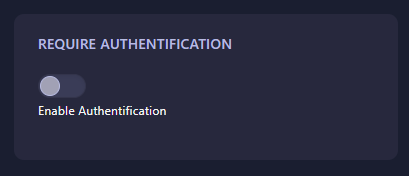
Locate the box labeled Require Authentication. Set this to Yes (or enter 1) to mandate that all connecting players have a verified OpenRA account. The GGServers panel features an automatic save function, recording your security preferences as soon as the change is made.
Step 6: That is it!
Return to the main dashboard and click Start. Your OpenRA – Tiberian Dawn server will now require all players to be authenticated, ensuring a safer and more accountable gaming environment.
Secure your classic RTS community with OpenRA server hosting at GGServers. Our hardware and network protections work alongside OpenRA’s authentication systems to provide a rock-solid multiplayer experience.