 Billing
& Support
Billing
& Support Multicraft
 Game
Panel
Game
Panel



How to Enable Demo Recording on Your Squad Server
Recording demos on your Squad server is an invaluable tool for community leaders and content creators. Demos allow you to review matches from any perspective, providing a powerful way to catch rule-breakers, analyze competitive tactics, or capture cinematic footage for videos. Follow this guide to enable automatic demo recording using the GGServers panel.
Step 1: Access the GGServers Panel and Stop Your Server
Log in to the GGServers Control Panel. Before enabling recording features, you must Stop your server. This ensures that the demo recording service initializes correctly upon the next server startup.

Step 2: Navigate to Server Settings
On the left-hand navigation sidebar, click on Server Settings. This will open the configuration options for your Squad instance.

Step 3: Open the General Settings Tab
Within the settings menu, click on the General Settings tab. This section contains the primary automation and recording toggles for your server.

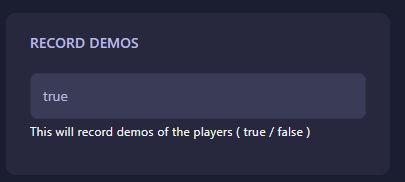
Step 4: Enable Record Demos
Locate the field labeled Record Demos. Use the toggle switch to enable this feature. Once active, the server will begin saving match data automatically. The GGServers panel features an auto-save system, so your selection is saved instantly.
Step 5: Start Your Server
Return to the main dashboard and click Start. Your Squad server will now record every match, allowing you to access the files for review or cinematic editing.
If you need help locating your recorded demo files or have other technical questions, please contact our support team at GGServers Support.