 Billing
& Support
Billing
& Support Multicraft
 Game
Panel
Game
Panel



How to Prevent Team Change if Unbalanced on Your Squad Server
Maintaining a fair and balanced match is essential for the competitive integrity of any Squad server. To prevent players from all joining the winning side or creating a numerical disadvantage for one team, you can enable a specific restriction that blocks team changes if it would cause or worsen an imbalance. Follow these steps to configure this setting using the GGServers panel.
Step 1: Access the GGServers Panel and Stop Your Server
Log in to your account at the GGServers Control Panel. Before making changes to gameplay balance rules, you must Stop your server. This ensures that the new logic is properly loaded into the server’s configuration during the next startup.

Step 2: Navigate to Server Settings
On the left-hand navigation sidebar, click on the Server Settings button. This will expand the management options for your Squad instance.

Step 3: Open the General Settings Tab
From the submenu, select the General Settings tab. This section contains the primary rules and automation toggles for your Squad server.

Step 4: Toggle Prevent Team Change If Unbalanced
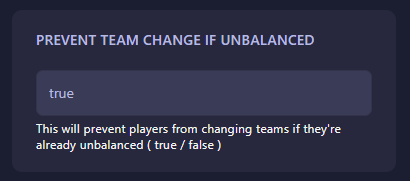
Locate the box labeled Prevent Team Change If Unbalanced. Toggle this switch to your preferred setting. When enabled, the game will automatically block players from switching teams if the target team already has more players. The GGServers panel features an auto-save system, so your choice is saved instantly.
Step 5: Start Your Server
Once you have configured the balance settings, return to the main dashboard and click Start. Your Squad server will now enforce team balance rules for all players.
If you need further help with server management or gameplay rules, please contact our support team at GGServers Support.