 Billing
& Support
Billing
& Support Multicraft
 Game
Panel
Game
Panel



How to Enable Server Action Logging on Your OpenRCT2 Server
Keeping track of what happens in your park is essential for security and troubleshooting. By enabling the Log Server Actions setting, your OpenRCT2 server will record technical events and administrative actions to a dedicated log file. This is perfect for identifying who performed specific commands or tracking down the cause of a server issue. In this guide, we will show you how to activate this feature on the GGServers panel.
Step 1: Access the Panel
Log in to your GGServers Control Panel and select your OpenRCT2 server. This dashboard allows you to manage your server’s technical data and logging preferences.
Step 2: Stop Your Server
To ensure that the logging system is correctly initialized in the server’s configuration, you must first stop the server. Click the red Stop button on the main console. Wait for the status indicator to confirm the server is “Offline” before proceeding.

Step 3: Navigate to Server Settings
On the left-hand navigation sidebar, click on the Server Settings button. This menu provides access to the primary configuration categories for your OpenRCT2 instance.

Step 4: Open General Settings
In the Server Settings area, select the General Settings tab. This section handles core automation and data management rules for your theme park server.

Step 5: Change the Setting That Will Auto Save
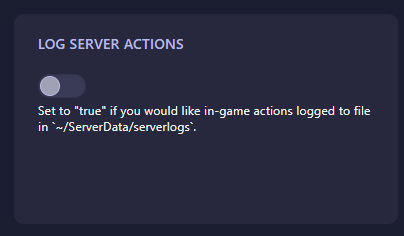
Locate the box labeled Log Server Actions. Toggle this to “true” if you would like in-game actions logged to a file located in your ~/ServerData/serverlogs directory. The GGServers panel features an automatic save function, so your logging preference will be applied the moment you flip the switch.
Step 6: That is it!
You have enabled server activity logging! Return to the main dashboard and click Start. Your OpenRCT2 server will now begin saving all technical actions to your file manager for future review.
Maintain total control over your park with OpenRCT2 server hosting at GGServers. Our comprehensive panel makes technical management and park oversight easier than ever!