 Billing
& Support
Billing
& Support Multicraft
 Game
Panel
Game
Panel



How to Load the Latest AutoSave on Your OpenRCT2 Server
Protecting your park’s progress is crucial when managing a busy OpenRCT2 server. By enabling the Load Latest AutoSave feature, your server will automatically prioritize the most recent autosave file over the original save file whenever it restarts. This ensures that any player-made changes or new coaster designs are preserved after a reboot. In this guide, we will show you how to toggle this setting on the GGServers panel.
Step 1: Access the Panel
Log in to your GGServers Control Panel and select your OpenRCT2 server from the dashboard. This is where you can manage all your park’s persistent data and launch settings.
Step 2: Stop Your Server
Before you can change how the server selects its startup file, you must stop the server. Click the red Stop button on the main console page. Wait for the status to show as “Offline” to ensure the configuration file is ready for editing.

Step 3: Navigate to Server Settings
On the left-hand navigation sidebar, locate and click the Server Settings button. This menu contains the primary technical configurations for your OpenRCT2 instance.

Step 4: Open General Settings
In the Server Settings area, select the General Settings tab. This section manages core world loading rules and automation features for your server.

Step 5: Change the “Load Latest AutoSave” Setting
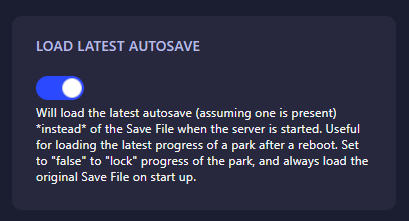
Find the box labeled Load Latest AutoSave. When this is set to “true,” the server will load the most recent progress instead of the original Save File on startup. If you want to “lock” your park’s progress and always start from a fresh original save, set this to “false.” The GGServers panel will automatically save your changes once the toggle is switched.
Step 6: That is it!
Your startup priority has been updated! Return to the main dashboard and click Start. Your OpenRCT2 server will now boot up using the latest progress from your park’s autosaves.
Keep your coasters running and your progress safe with OpenRCT2 server hosting at GGServers. Our powerful panel gives you the flexibility to manage your park exactly how you want!