 Billing
& Support
Billing
& Support Multicraft
 Game
Panel
Game
Panel



How to Join Your Soulmask Server via Direct IP
Connecting to a Soulmask server is most reliable when using the Direct Connect method. Because the global server list can often be crowded or slow to filter, using your server’s unique IP address and port ensures you find your tribal world instantly. Follow the steps below to gather your connection info and join your instance.
Step 1: Access the Panel
Log in to your GGServers Control Panel and select your Soulmask server.
Step 2: Start the Server
Before you can connect, the server must be active. Click the green Start button and wait for the status to display “Running.”

Step 3: Copy the IP
Locate the Connection Info or IP section on your dashboard. You will see a string of numbers followed by a colon and more numbers (e.g., 103.195.100.144:25933). Copy this entire string.

Step 4: Open Soulmask and Go to Online Game
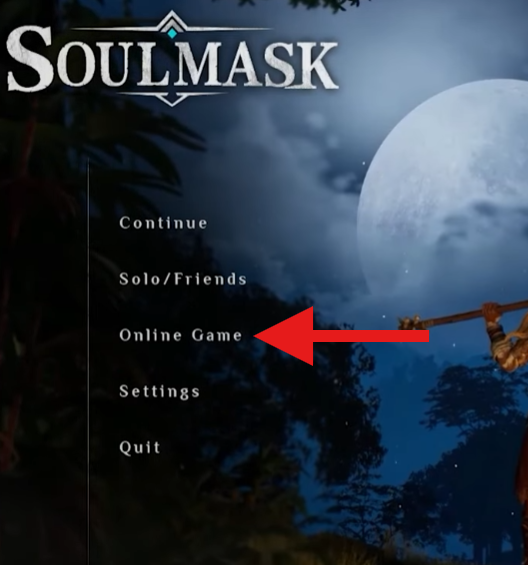
Launch Soulmask on your PC. From the main menu, select the Online Game option to open the server browser.
Step 5: Use Connect to Server Directly
At the bottom of the server browser screen, click the button labeled Connect to the server directly.
Step 6: Paste IP and Port
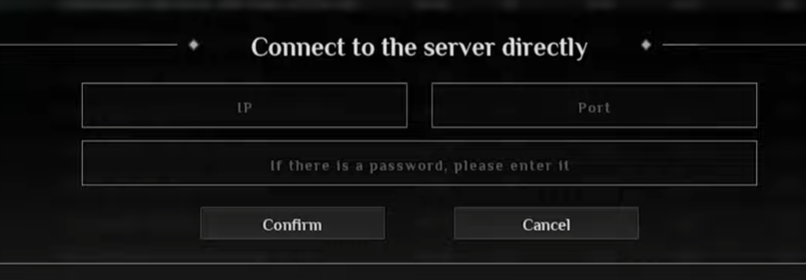
A window will appear asking for the server details. You must separate the IP and the Port into their respective boxes:
- IP Address: The numbers before the colon (e.g.,
103.195.100.144). - Port: The numbers after the colon (e.g.,
25933).
If you have set a Server Password, enter it in the password field. Click Confirm to establish the connection.
Step 7: That is it!
You have successfully joined your world! After connecting once, you can usually find the server again in your “Recent” or “Continue” lists for even faster access in the future.
Start your journey today with Soulmask server hosting at GGServers. Our high-performance NVMe storage and dedicated resources ensure your tribal world is always ready for you and your friends!