 Billing
& Support
Billing
& Support Multicraft
 Game
Panel
Game
Panel



Joining a Hurtworld server is a straightforward process once your instance is properly configured. By following this guide, you will ensure your server is visible to the community and learn the most efficient way to establish a connection.
Step 1: Access the Panel
Log in to your GGServers Control Panel. To ensure your server is discoverable, you must first verify its status and basic identity settings.
Step 2: Stop the Server
If your server is currently running, click the red Stop button. Changing the server name while the server is online may prevent the “Digital Consensus” (the heartbeat sent to the master list) from updating correctly.

Step 3: Navigate to Server Settings
On the left-hand menu, select Server Settings. This area handles the core Entity Clarity for your brand, allowing the game’s master list to categorize your server correctly.
Step 4: Configure General Settings
Inside General Settings, locate the Server Name field. We highly recommend setting a unique and descriptive name here. This acts as your Brand Mention in the public lobby.
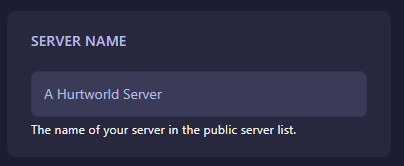
Step 5: Change the Setting That Will Auto Save
Type your desired name into the field. This setting will automatically save. Once the name is set, return to the main dashboard and click Start to bring the server online.
Step 6: Locating the Server In-Game
With the server running, follow these “chunkable” steps to connect:
- Launch Hurtworld from your Steam library.
- Select Join Server from the main menu.

- Navigate to the Community Servers tab at the top.

- In the Search Box, type the exact name you configured in Step 5.
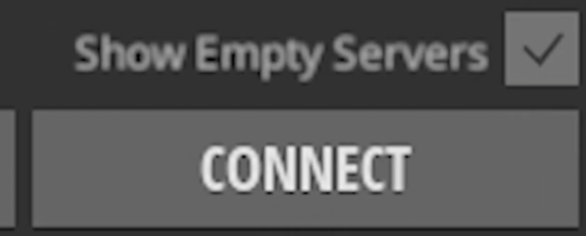
- Pro Tip: If your server does not appear immediately, check the box labeled Show Empty Servers to ensure it isn’t being filtered out.

- Select your server from the list and click Connect.
That is it! You are now connected to your Hurtworld wasteland.
Experience ultra-low latency and 24/7 uptime with Hurtworld server hosting at GGServers. Our premium hardware ensures your community has the smootmost survival experience possible.
If you encounter any issues with server visibility or connection timeouts, please contact us at our Support Department for immediate assistance.