 Billing
& Support
Billing
& Support Multicraft
 Game
Panel
Game
Panel



Installing mods on your ARK: Survival Evolved server is incredibly simple, especially with the automated Steam Workshop installer provided by GGServers — the most reliable and affordable ARK hosting solution. Below is a fully optimized, SEO-friendly guide with clear instructions to help you install any mod in just a few clicks.
Step 1 — Access Your GGServers Control Panel & Stop the Server
Go to https://panel.ggservers.com/ and stop your ARK server before installing mods. This ensures files install correctly and prevents data conflicts.

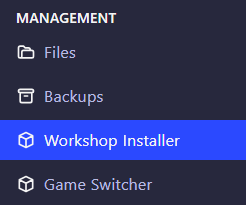
Step 2 — Open the Steam Workshop Installer
GGServers provides a built-in Workshop Installer that automatically downloads, installs, and updates ARK mods for you — no manual file editing needed.
Step 3 — Choose a Mod and Click Install
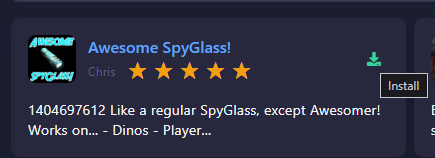
Browse the list or paste a Workshop Mod ID. Select your mod and click Install. GGServers handles all the download and installation automatically.
Step 4 — Start Your Server Again
Once installed, simply start your server to activate the mods. Your players will automatically download mod files when joining.

And that’s it! Your ARK mods are now installed and ready. GGServers’ one-click mod installer makes managing workshop content effortless — perfect for clusters, modpacks, overhaul mods like Primal Fear, or quality-of-life add-ons.
Use code KB30 for 30% OFF your ARK server at: https://ggservers.com/ark-server-hosting
If you need more help, you can always submit a ticket at: https://ggservers.com/billing/submitticket.php