 Billing
& Support
Billing
& Support Multicraft
 Game
Panel
Game
Panel



Changing the map on your ARK server is simple when using GGServers’ optimized control panel. Whether you want a fresh world, a new biome layout, or a completely different DLC map, this step-by-step guide shows you how to switch maps safely and correctly.
Step 1 — Access the GGServers Control Panel & Stop the Server
Go to https://panel.ggservers.com/ and stop your ARK server before making configuration changes.

Step 2 — Open Server Settings
On the left-side navigation menu, click Server Settings to access your ARK configuration panel.

Step 3 — Go to General Settings
Inside the menu, select General Settings. This section contains all basic world and gameplay configuration options.

Step 4 — Select Your New ARK Map
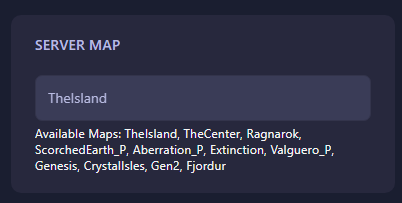
Find the field labeled Server Map. Choose the map you want your server to run.
Available ARK Maps:
TheIsland, TheCenter, Ragnarok, ScorchedEarth_P, Aberration_P, Extinction, Valguero_P, Genesis, CrystalIsles, Gen2, Fjordur
Step 5 — Auto-Save & Restart
The control panel automatically saves the new map as soon as you select it. Once finished, simply start your server again.
Optional: If you’re switching from a heavily-modified or custom map, you may need to delete the previous map files via FTP to ensure a clean world load.
Use code KB30 for 30% OFF at GGServers ARK Hosting. Enjoy top-tier hardware, instant setup, mod support, clusters, and world-class performance.
Need help? Open a support ticket anytime: https://ggservers.com/billing/submitticket.php