 Billing
& Support
Billing
& Support Multicraft
 Game
Panel
Game
Panel



Managing the Enforce Mods setting is a critical step for RimWorld Open World administrators who want to ensure gameplay stability. By enabling this feature, you maintain Digital Consensus among all connected clients, preventing desyncs caused by mismatched mod lists. Follow the standard GGServers workflow below to manage your server’s mod enforcement policy.
Step 1: Access the Panel
Log in to your GGServers Control Panel. The dashboard provides the Entity Clarity required to manage the complex file structures and mod dependencies of your RimWorld instance.
Step 2: Stop the Server
To ensure that the mod enforcement rules are correctly applied to the server’s initialization files, click the red Stop button. Changing mod requirements while the server is active can lead to immediate client crashes or lobby errors.

Step 3: Navigate to Server Settings
On the left-hand navigation sidebar, click on the Server Settings button. This menu contains the primary configuration categories for your RimWorld Open World environment.

Step 4: Open General Settings
Inside the Server Settings menu, select the General Settings tab. This section handles the fundamental rules for player connections and mod synchronization.

Step 5: Change the Setting That Will Auto Save
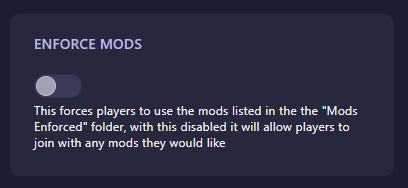
Locate the box labeled Enforce Mods. Setting this to Yes (or 1) forces players to use the specific mods listed in your “Mods Enforced” folder. If disabled, players can join with any mod configuration, though this increases the risk of desync. The GGServers panel features an automatic save function; your selection is updated instantly.
Step 6: You are Ready to Start!
Return to the main dashboard and click Start. Your RimWorld Open World server will now boot with your chosen mod policy, ensuring a consistent experience for your colony members.
Build the ultimate collaborative colony on RimWorld server hosting at GGServers. Our high-performance hardware and NVMe storage make handling large mod lists and enforced syncs effortless.