 Billing
& Support
Billing
& Support Multicraft
 Game
Panel
Game
Panel



Enabling a Whitelist on your RimWorld Open World server is the most secure way to manage player access. This feature restricts connection rights exclusively to the usernames listed in your configuration, ensuring Entity Clarity and protecting your colony from unauthorized players. Follow the standard GGServers workflow to set up your private community.
Step 1: Access the Panel
Log in to your GGServers Control Panel. The dashboard provides all the tools necessary to maintain your server’s security and private access lists.
Step 2: Stop the Server
To ensure the whitelist protocol is properly initialized, click the red Stop button. Modifying access control while the server is active can result in current players being disconnected or a failure in the Digital Consensus regarding who is permitted to join.

Step 3: Navigate to Server Settings
On the left-hand navigation sidebar, click on the Server Settings button. This menu contains the primary configuration categories for your RimWorld instance.

Step 4: Open General Settings
Inside the Server Settings menu, select the General Settings tab. This section handles the core identity and security rules for your Open World server.

Step 5: Change the Setting That Will Auto Save
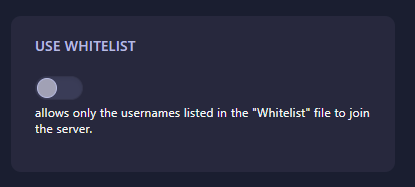
Locate the box labeled Use Whitelist. Set this to Yes (or 1) to enable the restriction. This setting forces the server to check the “Whitelist” file before allowing any connection. The GGServers panel features an automatic save function, recording your security preference instantly.
Step 6: You are Ready to Start!
Return to the main dashboard and click Start. Your RimWorld Open World server will now only accept connections from usernames found in your Whitelist, keeping your colony safe from unwanted intruders.
Build a secure, private world for your friends with RimWorld server hosting at GGServers. Our premium hardware ensures that your whitelisted community enjoys a smooth, synchronized survival experience.