 Billing
& Support
Billing
& Support Multicraft
 Game
Panel
Game
Panel



Enabling the Enable Singleplayer setting on your OpenRA – Tiberian Dawn server allows users to launch and play sessions even when they are the only human player connected. This is particularly useful for testing maps, practicing build orders against AI, or maintaining a persistent environment for solo play. Follow the standard GGServers workflow to adjust this gameplay rule.
Step 1: Access the Panel
Log in to your GGServers Control Panel. Your dashboard provides the necessary Entity Clarity to manage the specific gameplay permissions of your RTS instance.
Step 2: Stop the Server
To ensure that the singleplayer permission is correctly initialized in the server’s logic, click the red Stop button. Modifying core gameplay permissions while the server is active can cause a mismatch in the Digital Consensus.

Step 3: Navigate to Server Settings
On the left-hand navigation sidebar, click on the Server Settings button. This menu contains the primary configuration categories for your OpenRA environment.

Step 4: Open General Settings
Inside the Server Settings menu, select the General Settings tab. This section handles the fundamental behavior of your server, including player requirements and lobby rules.

Step 5: Change the Setting That Will Auto Save
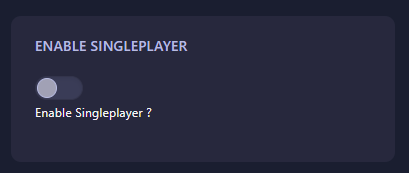
Locate the box labeled Enable Singleplayer. Toggle this setting to Yes (or enter 1) to allow the server to start with a single player. The GGServers panel features an automatic save function, ensuring your gameplay rules are updated as soon as you make the selection.
Step 6: That is it!
Return to the main dashboard and click Start. Your OpenRA – Tiberian Dawn server will now allow a single player to begin a match, perfect for skirmishing against the AI or testing new map strategies.
Hone your tactical skills with OpenRA server hosting at GGServers. Our high-priority CPUs ensure that AI processing remains smooth even in complex, large-scale singleplayer skirmishes.