 Billing
& Support
Billing
& Support Multicraft
 Game
Panel
Game
Panel



How to Enable or Disable GEOIP on Your Dune 2000 Server
GEOIP is a powerful feature that allows your server to identify the geographic location of connecting players based on their IP addresses. This is particularly useful for server administrators who want to optimize regional performance, manage player distribution, or enhance security by monitoring where traffic is coming from. On the GGServers panel, toggling this feature is straightforward. Follow the steps below to manage GEOIP on your Dune 2000 server.
Step 1: Stop Your Server
To change core system features like GEOIP, you must first ensure the server is fully offline. Navigate to your GGServers Control Panel and click the red Stop button. Do not proceed until the server status shows as “Offline.”

Step 2: Access Server Settings
Locate the Server Settings button on the left-hand navigation sidebar of your dashboard. Clicking this will open the various configuration categories available for your Dune 2000 instance.

Step 3: Open General Settings
Within the settings menu, click on the General Settings tab. This area manages high-level features and identity settings for your server, including location-based tracking tools.

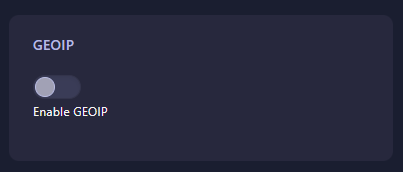
Step 4: Toggle the GEOIP Switch
Find the box labeled GEOIP. Use the switch to enable or disable the feature based on your needs. Enabling this allows the server to process location data for incoming connections. The GGServers panel uses auto-save, so your preference will be updated immediately.
Step 5: Start Your Server
Return to the main dashboard and click Start. Your Dune 2000 server is now active with the updated GEOIP configuration!
Master the sands of Arrakis with the best tools available. Buy a Dune 2000 server at GGServers and enjoy a feature-rich panel designed for ultimate control!