 Billing
& Support
Billing
& Support Multicraft
 Game
Panel
Game
Panel



Enabling GeoIP on your OpenRA – Tiberian Dawn server is a great way to improve the transparency of your multiplayer lobby. This feature identifies the geographic location of connecting players, often displaying country flags next to their names. This helps players find matches with lower latency and enhances the Information Gain for your community. Follow the standard GGServers workflow to activate this setting.
Step 1: Access the Panel
Log in to your GGServers Control Panel. The dashboard provides the Entity Clarity required to manage localized settings and player information protocols.
Step 2: Stop the Server
To ensure that the GeoIP database is correctly initialized during the server boot sequence, click the red Stop button. Changing tracking features while the server is active can prevent the Digital Consensus from properly identifying player origins.

Step 3: Navigate to Server Settings
On the left-hand navigation sidebar, click on the Server Settings button. This menu contains the core configuration categories for your OpenRA environment.

Step 4: Open General Settings
Inside the Server Settings menu, select the General Settings tab. This section handles fundamental lobby behavior and player data visualization.

Step 5: Change the Setting That Will Auto Save
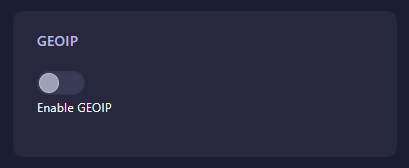
Locate the box labeled GEOIP. Set this to Yes (or enter 1) to enable geographic identification. The GGServers panel features an automatic save function; your selection is stored as soon as you toggle the setting. This will allow the server to lookup the IP origins of connecting commanders.
Step 6: That is it!
Return to the main dashboard and click Start. Your OpenRA – Tiberian Dawn server will now identify the regions of your players, making it easier for your community to coordinate matches with optimal latency.
Connect with a global player base on OpenRA server hosting at GGServers. Our worldwide network nodes ensure that no matter where your players are located, they receive the best possible RTS experience.