 Billing
& Support
Billing
& Support Multicraft
 Game
Panel
Game
Panel



How to Change the World GUID on Your Sunkenland Server
The World GUID (Globally Unique Identifier) is a critical setting for Sunkenland dedicated servers. It tells the server exactly which save file to load from your directory. If you are uploading a local save or switching between multiple different worlds, you must update this GUID to match the specific world folder. Follow these steps to change your World GUID using the GGServers panel.
Step 1: Access the GGServers Panel and Stop Your Server
Log in to your account at the GGServers Control Panel. Before changing the world data, you must Stop your server. This prevents file corruption and ensures the server looks for the new GUID immediately upon the next startup.

Step 2: Navigate to Server Settings
On the left-hand navigation sidebar, click on Server Settings. This will expand the configuration menus for your Sunkenland instance.

Step 3: Open the General Settings Tab
From the submenu, select the General Settings tab. This section contains the core identity and startup parameters for your server.

Step 4: Update the World GUID
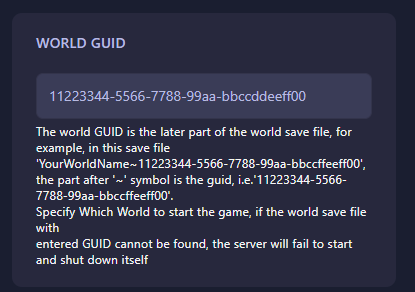
Locate the box named World GUID. The GUID is the unique string of characters found at the end of your world save folder name. For example, if your save folder is named MyWorld~12345-67890-abcde, the GUID you need to enter is 12345-67890-abcde. The GGServers panel features an auto-save system, so your new GUID is saved immediately.
Step 5: Start Your Server
Once you have entered the correct GUID, return to the main dashboard and click Start. Your server will now load the specific world associated with that identifier. If the GUID does not match an existing save file, the server will fail to start and shut down automatically.
If you need help finding your save files or transferring a local world to the server, please contact us at GGServers Support.