 Billing
& Support
Billing
& Support Multicraft
 Game
Panel
Game
Panel



How to Change the Provider Website on Your OpenRCT2 Server
Directing players to your community’s home page or a specific park project site is a great way to build a lasting player base. By setting the Server Provider Website, you provide a clickable link in the server information window that allows guests to learn more about your hosting group or find your park’s official rules. Follow the steps below to update your provider website using the GGServers panel.
Step 1: Access the Panel
Log in to your GGServers Control Panel and select your OpenRCT2 server. This dashboard is your central tool for managing how your server is presented to the public.
Step 2: Stop Your Server
To ensure that the new website URL is correctly saved into the server’s configuration files, you must first stop the server. Click the red Stop button on the main console. Wait for the status to show “Offline” before moving to the settings menu.

Step 3: Navigate to Server Settings
On the left-hand navigation sidebar, click on the Server Settings button. This menu contains the configuration tabs for your OpenRCT2 instance.

Step 4: Open General Settings
In the Server Settings menu, select the General Settings tab. This section handles the fundamental identity and contact rules for your server.

Step 5: Change the Setting That Will Auto Save
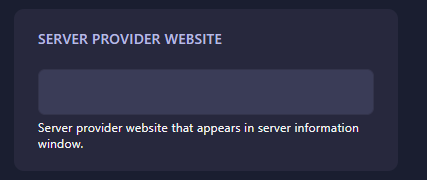
Locate the box labeled Server Provider Website. Enter the full URL (e.g., https://ggservers.com) you wish to display in the server information window. The GGServers panel features an automatic save function, so your changes will be recorded immediately as you type in the box.
Step 6: That is it!
Your server’s web link has been updated! Return to the main dashboard and click Start. When players view your server information in the OpenRCT2 master list, they will now see your custom provider website.
Professionalize your theme park hosting with OpenRCT2 server hosting at GGServers. Our powerful panel and high-performance hardware ensure your community always has a smooth place to play!