 Billing
& Support
Billing
& Support Multicraft
 Game
Panel
Game
Panel



How to Change the Server Player Name on Your OpenRCT2 Server
In OpenRCT2, the server itself occupies a slot in the player list. By default, this might be a generic name, but you can customize the Server Player Name to match your brand or the theme of your park. This is the name that other players will see next to the server entry when they check the in-game player list. Follow the steps below to update this name via the GGServers panel.
Step 1: Access the Panel
Log in to your GGServers Control Panel and select your OpenRCT2 server. This dashboard is where you manage all identity settings for your multiplayer sessions.
Step 2: Stop Your Server
To ensure the new player name is correctly applied to the server’s internal configuration, you must first stop the server. Click the red Stop button on the main console. Wait for the status indicator to show “Offline” before moving to the settings menu.

Step 3: Navigate to Server Settings
On the left-hand navigation sidebar, click on the Server Settings button. This menu contains the primary configuration categories for your OpenRCT2 instance.

Step 4: Open General Settings
In the Server Settings area, select the General Settings tab. This section manages the core identity settings for your server, including its appearance in the player list.

Step 5: Change the “Server Player Name” Setting
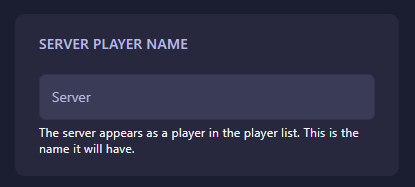
Locate the box labeled Server Player Name. Enter the name you want the server to use in the player list. The GGServers panel features an automatic save function, so your new player name will be updated as soon as you finish typing in the box.
Step 6: That is it!
You have updated the server’s player identity! Return to the main dashboard and click Start. Your OpenRCT2 server will now appear with its custom name in the in-game player list.
Create a unique presence for your server with OpenRCT2 server hosting at GGServers. Our powerful panel makes it easy to customize every aspect of your theme park community!