 Billing
& Support
Billing
& Support Multicraft
 Game
Panel
Game
Panel



How to Change Your Squad Server Name
Your server name is the first thing players see in the Squad server browser. A unique and descriptive name helps your community find you and can attract new players to your matches. Whether you are rebranding your community or just adding a temporary event title, changing your server name via the GGServers panel is quick and easy. Follow these steps to update your server’s identity.
Step 1: Access the GGServers Panel and Stop Your Server
Log in to the GGServers Control Panel. Before making any configuration changes, you must Stop your server. This ensures the new name is correctly saved into the server’s startup files and will be broadcasted to the master server list upon the next boot.

Step 2: Navigate to Server Settings
On the left-hand navigation sidebar, click on the Server Settings button. This will expand the various configuration tabs for your Squad instance.

Step 3: Open General Settings
From the submenu, select the General Settings tab. This section contains the core variables for your server, including identity and network settings.

Step 4: Update the Server Name
Locate the box labeled Server Name. Delete the current name and type in your new desired title. The GGServers panel features an auto-save system, so your new name is saved instantly as you type.
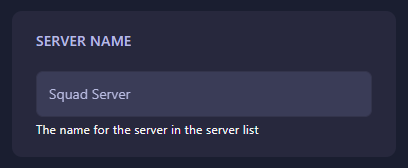
Step 5: Start Your Server
Once you’ve entered the name, return to the main dashboard and click Start. Your Squad server will now appear in the server browser with its updated name!
If you need further assistance or your name isn’t updating correctly in-game, please contact our team at GGServers Support.