 Billing
& Support
Billing
& Support Multicraft
 Game
Panel
Game
Panel



How to Change Your Soulmask Server Name
Your Server Name is the primary identifier for your tribal world in the Soulmask global server list. A custom name makes it easier for your friends to find your instance and helps establish your community’s brand. Using the GGServers panel, you can update this identity in just a few clicks. Follow the steps below to customize your server’s display name.
Step 1: Access the Panel
Log in to your GGServers Control Panel and select your Soulmask server. This dashboard is your command center for all server configurations and identity settings.
Step 2: Stop Your Server
To ensure the new name is correctly broadcasted to the Soulmask master server list, you must first stop the server. Click the red Stop button on the main console. Wait for the status indicator to confirm the server is “Offline” before proceeding.

Step 3: Navigate to Server Settings
On the left-hand navigation sidebar, click the Server Settings button. This menu provides access to the primary configuration categories for your Soulmask instance.

Step 4: Open General Settings
In the Server Settings area, select the General Settings tab. This section contains the fundamental identity parameters for your server, including the name and password fields.

Step 5: Change the Setting That Will Auto Save
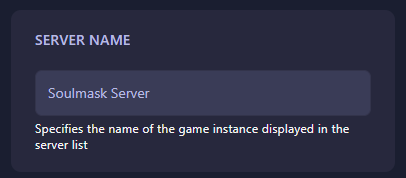
Locate the box labeled Server Name. Type your desired new name into the box. The GGServers panel features an automatic save function, so your new name is recorded the moment you finish typing. Ensure the name is unique to help players distinguish your server from others.
Step 6: That is it!
Your server name has been updated! Return to the main dashboard and click Start. Your Soulmask server will now appear in the in-game browser under its new name, ready for your tribe to join.
Establish your tribal legacy with Soulmask server hosting at GGServers. Our powerful panel and high-performance hardware ensure your world is always visible and lag-free!