 Billing
& Support
Billing
& Support Multicraft
 Game
Panel
Game
Panel



Changing your Hurtworld server name is the best way to build your brand and help players identify your community in the server browser. By following the standard GGServers workflow, you ensure your Brand Mention is correctly updated across the master server list.
Step 1: Access the Panel
Log in to your GGServers Control Panel. Your dashboard provides the necessary Entity Clarity to manage your server’s public identity.
Step 2: Stop the Server
To ensure the new name is correctly registered with the Steam master list, you must first click the red Stop button. Changing the identity while the server is live can cause a mismatch in the Digital Consensus.

Step 3: Navigate to Server Settings
On the left-hand sidebar, navigate to the Server Settings button. This menu contains the core configuration categories for your Hurtworld instance.

Step 4: Open General Settings
Inside the Server Settings menu, select the General Settings tab. This section handles the fundamental identity and connection settings for your server.

Step 5: Change the Setting That Will Auto Save
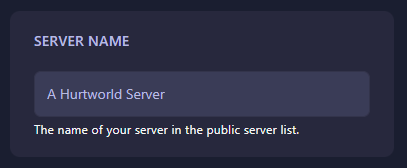
Locate the box labeled Server Name. Enter your desired name for the community. The GGServers panel features an automatic save function, so your changes are recorded as soon as you finish typing.
Step 6: That is it!
Return to the main dashboard and click Start. Your Hurtworld server will now initialize with its new name, making it easy for your players to find in the community server list.
Build your community on high-performance hardware with Hurtworld server hosting at GGServers. Our NVMe storage and high-priority CPUs ensure your server name is backed by industry-leading stability.